How to Set Up a Website: 10 Steps to Get Online
A blank page. The blinking cursor. The empty domain.
Your website does not exist, but it could. It should.
In the world of now, when attention is on the new currency, having no website is like having no business card. Worse, it’s like having no voice.
But here’s the thing: setting up a website isn’t about perfection. It’s not about having every bell and whistle from day one. It’s about starting. It’s about putting your stake in the digital ground and saying, “I’m here. This is me. This is what I have to offer.”
Ten steps. That’s all it takes to go from digital silence into your online presence: ten steps to turn your ideas, passion, and business into something tangible, something shareable.
Will it be perfect? No. Will it be finished? Never.
But it will be yours. And that’s the point.
Let’s start work.
- Choose a memorable domain and suitable TLD that fits your brand and is easy to spell and remember.
- Select reliable hosting with good uptime, speed, scalability and consider managed, cloud or static options.
- Design for clear UX and accessibility: simple navigation, mobile responsiveness, strong visual hierarchy and fast load times.
- Secure, optimise and maintain: SSL, backups, updates, SEO, analytics, legal compliance and regular content updates.
Why Set Up a Website?

Before we dive into the nitty-gritty details of setting up a website, let’s look at why you might want to set one up in the first place.
Your Digital Storefront
In the modern world, your website is your shopfront that never closes. It’s always open, ready to meet and greet visitors and represent you or your brand. Yet, unlike the physical shopfront, your website can reach people across the globe, breaking geographical barriers.
Establish Credibility
A professional website gives one a legitimate business or personal brand. It shows you mean business and are serious about what you do; another channel for potential customers or employers to learn about you.
Highlight Your Work
Whether you are a graphic artist, writer, photographer, or creative employee, a website will provide you with the right spot to show your portfolio. This is your gallery, which is open to the world.
Connect with Your Audience
The website lets you reach your audience directly. You can engage your visitors through blog posts, contact forms, or social media integrations, building a community around your brand or interests.
Control Your Narrative
Unlike social media platforms, which put you at the mercy of algorithms and platform rules, your website is your domain, pun intended. You have complete control over how you present yourself and your content.
Having briefed on the ‘why’, we will now explain ‘how’. The setup of a website involves several basic steps, which we shall discuss one by one.
Step 1: Choose Your Domain Name
Your website’s domain name is the location of your webpage online. People will enter this into their browsers to get to your site, so it is critical to think it through. Here are some tips to help you pick the perfect domain name:
Shorten It
The shorter the domain name, the easier it is for people to remember and type it. Look for a brief phrase that captures the essence of your brand.
Build It Unforgettably
The domain name should be “oh-that’s-a-cool-name”, which is catchy and easy to memorise. Never jumble up letters or numbers that could potentially confuse people.
Add Keywords
If you run a business website, integrating relevant keywords into your domain name can help improve your position in search engine results pages.
Verifying the Availability
Once you list some names, the first step is to check their availability. Many domain name registrars offer domain name search tools.
Get the Perfect Ending
Consequently, although .com is the most familiar domain suffix, you should still look at other top-level domain extensions like .co.uk, .org, or .net that may suit you better.
Consider Modern TLDs
Look, everyone and their dog goes for a .com. That’s fine, but it means all the good, short names are probably gone.
The thing is, the game’s changed a bit. Now you’ve got hundreds of other options, these industry-specific endings.
Think about it. If you’re a photographer, getting a name like `yourname.photography` tells people exactly what you do before they’ve even clicked the link. It’s just smart.
A tech startup might choose a .io or .app domain. A graphic designer? `yourbrand.design`.
It’s a dead-simple way to stand out and make your web address more memorable. Don’t just get stuck on .com if something else better fits your brand.
Step 2: Select a Web Hosting Provider
Before you choose a host, you must understand the financial commitment. A website isn’t a one-time purchase; it is an ongoing asset with varying tiers of investment.
| Expense Category | Entry-Level (DIY) | Professional Business | E-commerce / Scale |
| Domain Name | £10–£15 /year | £15–£50 /year | £50+ /year (Premium) |
| Web Hosting | £3–£8 /month | £20–£50 /month | £100+ /month (Cloud/Dedicated) |
| Platform/CMS | Free (WordPress.org) | £15–£30 /month (Wix/Squarespace) | £25–£2,000 /month (Shopify) |
| Design/Theme | Free | £50–£150 (Premium Template) | £3,000+ (Custom Design) |
| Security/SSL | Free (Let’s Encrypt) | £50–£100 (Advanced SSL) | Included in Managed |
| Total Year 1 | ~£150 | ~£600–£1,200 | £5,000+ |
Pro Tip: Always look for “introductory rates.” Many hosts like SiteGround or Bluehost offer 70% discounts for the first year, but your costs will jump significantly upon renewal. Budget for the renewal price, not the sign-up price.
Types of Web Hosting
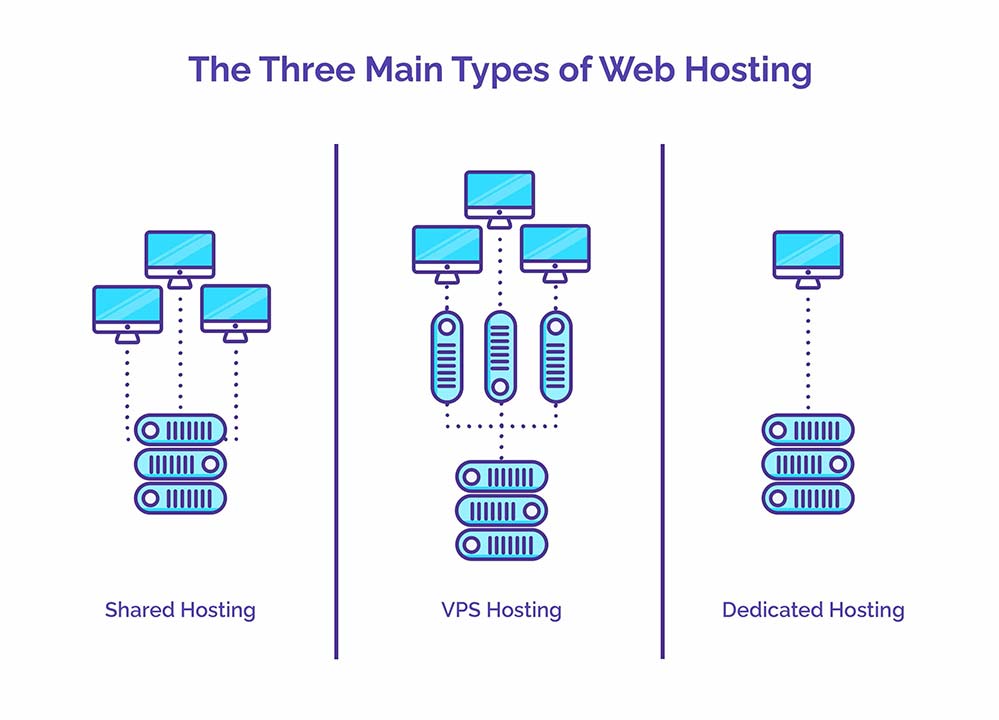
There are several types of web hosting to choose from:
- Shared Hosting: Your website shares server resources with other websites. It’s the most affordable option and is suitable for small websites.
- Virtual Private Server (VPS) Hosting: Offers more resources and control than shared hosting, but still shares a physical server with other websites.
- Dedicated Hosting: You get an entire server to yourself. It’s the most expensive option but offers the most control and resources.
- Cloud Hosting: Your website is hosted on multiple servers, offering scalability and reliability.
- Managed Hosting: Right, if you’re not a tech wizard and just want it to work, this is your best bet. It’s a service where the provider handles all the boring stuff for you, all the technical bits like security, speed, updates, and backups.
It’s especially common for WordPress. Yes, it costs a bit more, but honestly, what’s your time worth? You get to focus on your actual business, not on figuring out why something’s suddenly broken.
Factors to Consider When Choosing a Web Host
- Uptime: Look for providers that guarantee at least 99.9% uptime.
- Speed: Fast loading times are crucial for user experience and SEO.
- Customer Support: 24/7 support can be a lifesaver when issues arise.
- Scalability: Can the host accommodate your website as it grows?
- Price: While important, don’t sacrifice quality for a lower price.
Modern Architecture: Managed WordPress vs. Headless
For those seeking peak performance, the choice of architecture matters.
- Managed WordPress (e.g., WP Engine, Kinsta): The host manages updates, backups, and security. It’s “set and forget” for high-traffic sites.
- Static Site Generators (SSGs) (e.g., Hugo, Jekyll): These sites have no database; they are pre-rendered into HTML files. They are virtually unhackable and load at lightning speed.
- Headless CMS (e.g., Strapi, Contentful): You manage content in one place and “push” it to any front-end. This is the future for multi-channel brands (web, app, and IoT).
Step 3: Design Your Website
Now comes the fun part – designing your website! This is where you can unleash your creativity and bring your vision to life. But remember, while aesthetics are important, functionality should always come first.
Choose a Website Builder or Content Management System (CMS)
Unless you’re a web developer, you’ll probably want to use a website builder or CMS to create your site. Popular options include:
- WordPress: Highly customisable and great for blogs and content-heavy sites.
- Wix: User-friendly drag-and-drop interface, suitable for beginners.
- Shopify: Specifically designed for e-commerce websites.
- Squarespace: Known for its sleek, modern templates.
Select a Theme or Template
Most website builders and CMSs offer a range of pre-designed themes or templates. Choose one that aligns with your brand and the purpose of your website. Remember, you can usually customise these templates to make them unique.
Choosing Your Build Method: AI vs Manual
In 2026, the first decision isn’t which platform to use, but how much of the “heavy lifting” you want to delegate to Artificial Intelligence.
- AI-First Builders (e.g., Framer AI, Wix ADI, 10Web): These tools allow you to type a prompt like “Create a website for a boutique coffee shop in Shoreditch with a minimalist aesthetic” and generate a full layout with copy and images in seconds.
- Best for: Speed, landing pages, and those with zero design skill.
- Traditional CMS (e.g., WordPress, Ghost): You maintain total control over the code and database. You use plugins (like Elementor or GeneratePress) to build visually.
- Best for: Long-term SEO, complex functionality, and full ownership of data.
When should you use AI? Use AI builders for rapid prototyping or simple service sites. If you plan to scale a content-rich blog or a complex shop, the flexibility of WordPress remains the gold standard because you aren’t “locked in” to a proprietary builder’s ecosystem.
Focus on User Experience (UX)
Okay, let’s have a straight chat about something most people get wrong. A pretty website is absolutely useless if people can’t figure out how to use it.
It’s like having a shop with a beautiful sign but a locked door.
This is all about User Experience, or UX. It’s about making your site easy and, dare I say it, pleasant to use.
Get this right, and people will stick around. Get it wrong, and they’ll be gone in a heartbeat.
Intuitive Navigation
Here’s the rule: don’t make people think. Ever.
Your menu should be simple and logical, so visitors know exactly where to go to find what they need. If they have to hunt for your contact page or your list of services, you’ve already lost.
Imagine walking into a supermarket and not being able to find the bread aisle. You’d just get annoyed and leave, wouldn’t you?
It’s the exact same thing online.
Visual Hierarchy
This one’s simple. You guide people’s eyes.
Make the most important thing on the page the biggest, the boldest, or the brightest. What do you want them to do?
If it’s to click a ‘Buy Now’ button, then that button better not be a tiny grey link hiding at the bottom of the page. Make it obvious.
Accessibility
Right, this is a big one that’s often overlooked. Some of your visitors will have disabilities that affect how they use the web.
Making your site accessible means they can use it too. We’re talking about simple stuff, like making sure your text and background colours have enough contrast so people can actually read them.
Or ensuring someone can get around your site using just their keyboard.
The best part is that making a site accessible doesn’t just help people with disabilities. It makes it better and easier to use for absolutely everyone.
Customise Your Design
Once you’ve chosen a template, it’s time to make it your own. This might involve:
- Changing colours to match your brand
- Adding your logo
- Customising fonts
- Uploading your images
Create Your Pages
Every website needs a few essential pages:
- Home Page: This is your website’s front door. Make it welcoming and informative.
- About Page: Tell your story or explain what your business does.
- Contact Page: Make it easy for visitors to contact you.
- Products/Services Page: If you’re selling something, showcase it here.
Optimise for Mobile
With more people browsing on their phones than ever before, it’s crucial that your website looks good and functions well on mobile devices. Most modern website builders and themes are mobile-responsive by default, but it’s worth double-checking.
Step 4: Add Content to Your Website

Content is king, as they say, in the digital world. It will keep visitors returning to your site and help you rank in search engines. Here’s how to create compelling content for your website:
Write Clear and Engaging Copy
Your website copy should be easy to read and understand. Use short paragraphs, bullet points, and subheadings to break up text and make it scannable.
Use High-Quality Images
Images can make or break your website design. Use high-quality, relevant images that enhance your content. If you don’t have your own, there are many stock photo websites where you can find professional images.
Create Valuable Blog Posts
If you’re including a blog on your website (and you should!), focus on creating content that provides value to your readers. Answer their questions, solve their problems, or entertain them.
Incorporate Videos
Video content is increasingly popular and can boost engagement on your site. Consider adding product demos, explainer videos, or behind-the-scenes footage.
Update Regularly
Keep your content fresh by updating it regularly. This keeps visitors returning and signals to search engines that your site is active.
Step 5: Implement Essential Features and Functionality
Depending on your website’s purpose, you might need to add various features and functionalities. Here are some common ones:
Contact Form
Make it easy for visitors to contact you by adding a contact form. Most website builders offer this as a built-in feature.
Social Media Integration
Link your social media profiles to your website to increase your online presence and engage with your audience across platforms.
E-commerce Functionality
If you’re selling products or services, you must set up e-commerce features like a shopping cart and a secure payment gateway.
Search Function
A search function can help visitors quickly find what they want on content-heavy websites.
Newsletter Sign-up
Building an email list is a great way to keep in touch with your audience. Add a newsletter sign-up form to capture visitors’ email addresses.
Legal Essentials: GDPR, Accessibility, and Policies
Setting up a website involves more than just design; it involves legal responsibility. In the UK and EU, non-compliance can lead to significant fines and reduced visibility in search results.
- Privacy Policy & Terms of Service: You must disclose how you collect and use visitor data. Tools like Termly or GetTerms can generate these for you.
- Cookie Consent: In 2026, simple “we use cookies” banners are insufficient. You need a “Consent Management Platform” (CMP) like CookieBot or OneTrust that lets users opt in or out of specific tracking categories.
- Accessibility (WCAG 2.2): Modern standards require your site to be usable by people with visual or motor impairments. This includes high colour contrast, “Alt text” for every image, and keyboard-friendly navigation.
- Imprint/Contact Details: UK law requires businesses to display their registered office address and company number clearly, usually in the footer.
Step 6: Optimise for Search Engines

You want people to find your website. That’s where Search Engine Optimisation (SEO) comes in. Here are some essential SEO tips to get you started:
Use Relevant Keywords
Research keywords related to your content and incorporate them naturally into your copy, headings, and meta descriptions.
Create Quality Content
Search engines love fresh, original, high-quality content. Focus on creating valuable content that answers your audience’s questions.
Optimise Your Images
Use descriptive file names and alt text for your images to help search engines understand what they’re about.
Build Quality Backlinks
Encourage other reputable websites to link to your content. This signals to search engines that your site is trustworthy.
Improve Site Speed
Fast-loading websites rank better in search results. Optimise your images, minify your code, and choose a good hosting provider to improve your site speed.
Don’t Forget Local SEO
So, you’re a cafe in Camden. You don’t care about ranking in Manchester, do you?
Of course not. You care about people searching for “best coffee near me” while they’re standing on Camden High Street.
That’s what Local SEO is for.
If your business serves a specific area, you need to be doing this. It’s not optional.
It’s how you get found by the people who can actually pay you money.
First up, get yourself a Google Business Profile. It’s that free listing that pops up on Google Maps and in local search results.
Fill out every single section. I mean everything: your address, phone number, opening hours, photos of your work, the lot.
This is your digital shop sign, so make it a good one.
Next, you need reviews. Get your happy customers to leave them on your Google profile.
Don’t be shy about asking. More good, recent reviews tell Google that you’re a legitimate, trustworthy business, and they’ll show you to more people.
Finally, create content for local people. A London-based gardener could write a blog post on “The Best Plants for London Clay Soil.”
See? You’re being genuinely helpful while also screaming to Google about where you operate.
Step 7: Ensure Your Website is Secure
In today’s digital landscape, website security is more important than ever. Here’s how to keep your website safe:
Install an SSL Certificate
An SSL certificate encrypts data transmitted between your website and its visitors. It’s essential for e-commerce sites and also helps with SEO.
Use Strong Passwords
Use unique, complex passwords for your website admin area and hosting account. Consider using a password manager to keep track of them.
Keep Software Updated
Regularly update your CMS, plugins, and themes to patch security vulnerabilities.
Back-Up Your Website
Regular backups ensure you can restore your site if something goes wrong. Many hosting providers offer automatic backup services.
Use a Web Application Firewall (WAF)
Think of a WAF like a bouncer for your website. It stands at the digital door and checks everyone who tries to come in.
It’s looking for dodgy characters, bots, and known hackers.
If it spots any malicious traffic trying to reach your site, it blocks it before it can do any damage. It’s a proactive layer of defence that stops attacks before they even start.
Many good hosting providers include one these days, and services like Cloudflare offer them too. It’s a simple way to get some proper peace of mind.
Step 8: Test Your Website
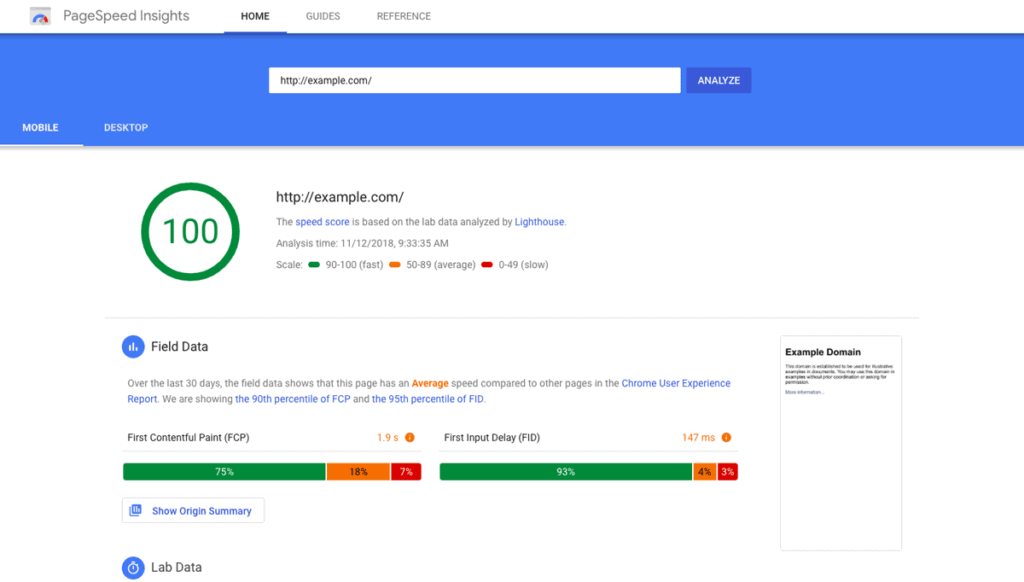
A website that loads in 5 seconds is a failed website in 2026. Users expect “instant-on” experiences. Before launching, you must pass the Core Web Vitals test.
- Largest Contentful Paint (LCP): How long does it take for the main content to appear? Target: Under 1.2 seconds.
- Cumulative Layout Shift (CLS): Do buttons or text jump around while the page loads? Target: 0.1 or less.
- Interaction to Next Paint (INP): How quickly does the site react when a user clicks a link? Target: Under 200ms.
How to optimise performance:
- Use WebP or AVIF Images: Abandon JPEGs and PNGs. These modern formats provide better quality at 30% of the file size.
- Enable a Content Delivery Network (CDN): Use Cloudflare or bunny.net to cache your website on servers globally. This ensures a visitor in New York sees your site as fast as someone in London.
- Minify CSS and JavaScript: Use a plugin like WP Rocket (for WordPress) to strip unnecessary characters from your code, making the files lighter for browsers to download.
Step 9: Launch Your Website
Congratulations! You’re now ready to launch your website. Here’s what to do:
Double-Check Everything
Do a final review of all your content, design, and functionality.
Set Up Analytics
Install Google Analytics or another analytics tool to track your website’s performance.
Submit Your Site to Search Engines
While search engines will eventually find your site independently, you can speed up the process by submitting your sitemap to Google Search Console and Bing Webmaster Tools.
Announce Your Launch
Share your new website on social media, email your contacts, or consider a press release if appropriate.
Step 10: Maintain and Update Your Website
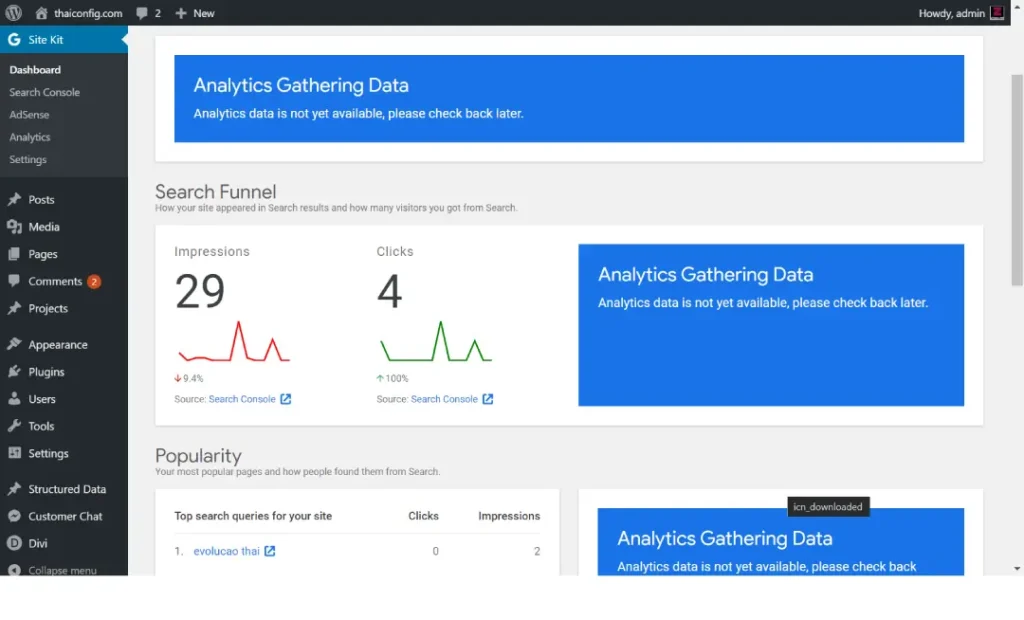
Launching your website is just the beginning. To keep it performing well, you’ll need to maintain and update it regularly:
Monitor Performance
Use Google Analytics to track visitor behaviour and identify areas for improvement.
Update Content
Keep your content fresh and relevant by updating it regularly.
Perform Regular Backups
Make sure your website is backed up regularly to prevent data loss.
Stay on Top of Security
Keep your software up to date and regularly scan for vulnerabilities.
Gather Feedback
Ask your visitors for feedback and use it to improve your website.
Your First 90 Days: From Launch to Traffic
The “build it, and they will come” philosophy is a myth. Once the site is live, your real work begins. Follow this 90-day roadmap to ensure your investment pays off.
Month 1: Foundation & Indexing
- Google Search Console: Verify your site and submit your
sitemap.xml. This is how you tell Google exactly which pages to crawl. - Professional Email: Don’t use a Gmail address for business. Set up Google Workspace or Microsoft 365 to get a
hello@yourdomain.comaddress. - Local SEO: If you have a physical location, claim your Google Business Profile and ensure your “NAP” (Name, Address, Phone) details match your website exactly.
Month 2: Content & Authority
- The Pillar Strategy: Write three 2,000-word “guide” pages that answer the most common questions in your industry.
- Internal Linking: Ensure every new blog post links back to your main service or product pages. This helps search engines understand your site’s hierarchy.
Month 3: Promotion & Backlinks
- Networking: Reach out to industry partners for guest posting opportunities. One link from a high-authority site like The Guardian or TechCrunch is worth more than 1,000 low-quality directories.
- Social Integration: Use tools like Buffer or Hootsuite to automate the sharing of your content across LinkedIn, X, and Instagram.
Conclusion
Setting up a website might seem complex, but it becomes much more manageable when broken down into these steps. Remember, your website reflects you or your business, so take the time to do it right.
Feel free to experiment, learn from your mistakes, and continually improve your site based on feedback and analytics.
Whether you’re a small business owner, a freelancer, or someone passionate about sharing with the world, having your website can open up opportunities.
As you build and develop your website, it is well worth considering how integrating technology will improve operational efficiency and user experience.
For example, in healthcare, companies like Jelvix have been at the forefront, providing software solutions that meet the needs of healthcare practitioners and encompass everything from patient data management to telemedicine platforms.
Developments like these remind us that, depending on one’s industry, expert software development houses can build applications that smooth day-to-day workflows, enabling your organisation to match its competitors in a lightning-speed world.
So, what are you waiting for? It’s time to stake your claim in the digital landscape and make your voice heard!
How to Set up a Website FAQs
How much does it cost to set up a website?
The cost can vary widely depending on your needs. An essential website might cost as little as £50-£100 per year for hosting and a domain name, while a more complex site could cost thousands. Website builders often offer all-in-one packages for around £10- £30 per month.
How long does it take to set up a website?
You could have a primary site with a website builder in a day or two. A more complex, custom-built site might take several weeks or even months.
Can I use AI to write all my website content?
You can use AI (like Claude or ChatGPT) to generate drafts, but 2026 search engines reward “Information Gain”—content that adds unique value, personal experience, or new data. Always edit AI drafts to include your brand voice and real-world expertise.
Do I need a developer to start a website in 2026?
For 90% of small businesses, the answer is no. Platforms like Squarespace and Wix have evolved to support complex features such as bookings and member areas. You only need a developer for bespoke software integrations or highly custom database work.
How do I get my website to show up on the first page of Google?
Focus on “Topical Authority.” Instead of writing one-off posts, create clusters of content that cover a topic from every angle. Ensure your technical SEO is perfect (fast loading and mobile-friendly) and earn links from reputable sites in your niche.
Is .com still the best domain extension?
While .com remains the most recognised, TLDs like .io (tech), .store (e-commerce), and .me (portfolios) are perfectly acceptable and do not hurt your SEO. The priority is a short, memorable name rather than the extension.
Is it better to use a website builder or hire a web developer?
It depends on your needs and budget. Website builders are great for simple sites and those on a tight budget. For more complex, custom sites, hiring a developer might be a better option.
What is the most secure way to take payments online?
Never store credit card data on your own server. Use a PCI-compliant payment processor like Stripe, PayPal, or Adyen. These services handle the security encryption for you, reducing your legal liability.
How do I make my website mobile-friendly?
Choose a responsive theme or template, use a mobile-friendly website builder, and test your site on various devices. Also, consider implementing AMP (Accelerated Mobile Pages) to improve page load times on mobile devices.
What’s the difference between HTTP and https?
HTTPS is the secure version of HTTP. It encrypts data transmitted between the website and the user’s browser, providing better security and privacy.
Can I change my website design after it’s launched?
Yes, you can change your website design at any time. However, it’s best to plan your layout carefully to avoid confusion for regular visitors.