Top 10 Best Tablets for Drawing, Design & Art
Creating notes, capturing images, playing games, watching videos and browsing the internet are some things that most tablets can do. However, there are those specifically for those who draw, design or produce art. This is a compilation of the world’s best drawing tablets you can buy for your children or yourself. It includes one that suits you and your artistic style.
New tablet devices have enabled us to quickly get our favourite art tools whenever needed. Tablets can serve as a portable display for creation manipulation and sharing options, especially for artists, designers and photographers.
Tablets are perfect gadgets for anyone who loves art or design. They are straightforward to operate and can be carried anywhere.
One should use tablets for art and design purposes for several reasons. Firstly, they are portable and easy to move around; for instance, if you travel often, having a tablet will solve your issue since it is small enough to fit in a bag, unlike laptops or desktops, which call for baggage during travel. Secondly, they are user-friendly because they have touch screens where one can sketch anything. Lastly, they cost less compared to other options out there.
For ease, I have researched the top ten tablets best suited for drawing, art and designing work. These tablets have unique features designed for drawing and designing, yet come in different sizes and prices.
- Tablets designed for art and design offer portability and user-friendliness, making them ideal for artists on the go.
- The Wacom Cintiq 16 provides extreme accuracy with a high-resolution display, enhancing the digital drawing experience.
- XP-PEN Artist12 is an affordable option featuring a battery-free stylus, compatible with various operating systems and design programmes.
- Huion Kamvas Pro delivers smooth performance with good battery life, making it a top choice for artists and designers alike.
- Xencelabs Drawing Tablet features customisable buttons and dual pen options, providing flexibility for various artistic styles and workflows.
1 – Wacom Cintiq 16
New gadgets are constantly hitting the market; if you’re anything like me, you can’t get enough of them. I always search for the latest technology to add to my ever-growing collection.
When I first heard about Cintiq, I was instantly intrigued. I researched and knew I needed one of these in my life.
The Cintiq digital pen display offers extreme accuracy when drawing directly onto your computer screen. It boasts a 1920×1080 high-resolution screen, so your drawings will look better.
The pen is incredibly smooth and offers a realistic feel. With 8,192 levels of pressure sensitivity, it recognises even the lightest strokes, meaning you won’t be able to make a mark accidentally.
With low activation Force and natural-feeling pen-on-paper tilt recognition with virtually no lag time, this combination makes drawing on the device incredibly natural. The display is also super responsive — as soon as you make a line on the screen with your stylus or finger, you’ll see the cursor move accordingly.
To connect it to your Mac or Windows PC, use the included 3-in-1 cable for the fastest possible connection.
I haven’t found any issues with this product so far. I’ve only fallen more and more in love with it every day. Trust me: whether you’re a casual artist or someone who draws every day like myself — this is an absolute must-have tool for any creative type.
2 – XP-PEN Artist12
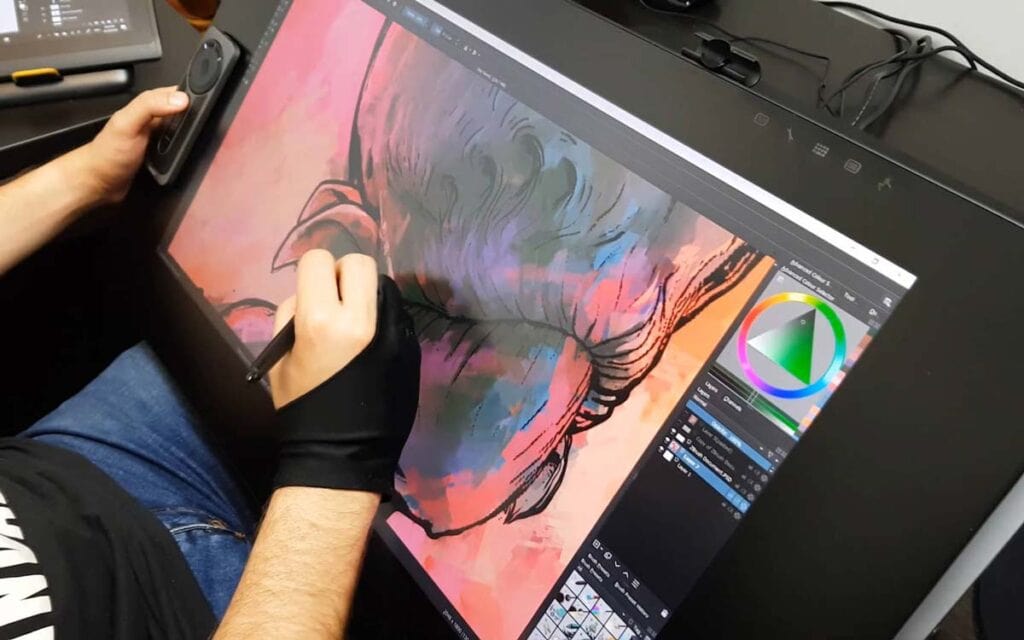
The XP-PEN Artist12 is an affordable, high-performance, battery-free stylus for artists. On top of having no battery, there are many excellent features to look forward to.
It’s one of the best you can find for such a low price. It’s also one of the very few that comes with a screen and has such a wide range.
There should be no compatibility issues when using Windows, Mac, or Linux. Some programs it plays nicely with include Photoshop, Illustrator, SAI, Painter, MediBang, Clip Studio and more! It’s wild to think this cheap thing can hold its own against some much more prominent brands.
To sum this up in simple terms – it’ll work with just about any device or program you throw at it. You can even use it wirelessly after drawing on your screen!
It feels great in hand and is comfortable enough to draw with for hours. The grip is still sturdy but easy enough to hold comfortably.
Its battery life is also fantastic. After a full charge, I could use it for quite a long time before needing to charge again.
And when it does need some juice after dying on you – there’s nothing to worry about! IT won’t take longer than 2 hours if plugged into your wall outlet. Less than 3 hours if powered by your computer instead.
There is no need for extra help figuring out how anything works. Everything about this pen felt intuitive while navigating through its menus.
Also included are eight replacement nibs and a straightforward way to replace them; I’m sure you’ll have no trouble figuring out how!
3 – HUION KAMVAS Pro
With a drawing experience that’s a stroke of brilliance, the Huion Kamvas Pro 16 tablet is an artist and designer’s dream. This high-quality product has breathtaking visual quality, and its performance exceeded my expectations.
While it’s designed to be used with a mouse, the Huion Kamvas Pro 16 works perfectly fine with my Logitech MX Anywhere 2.0 mouse — but what a difference it makes! The Huion Kamvas Pro 16 feels much smoother when used with the mouse, and I had no lag issues while drawing.
I used it for about an hour, and the pen did not lose track. When I moved it too far from the screen, I only noticed the pen lost track, but that was quickly resolved.
The Huion Kamvas Pro 16 is extremely lightweight and folds right up for easy carrying. A great feature to have!
The battery life is also good; after four hours of continuous drawing, the battery was still going strong.
Overall, this tablet is fantastic, and I highly recommend it.
4 – Wacom One HD
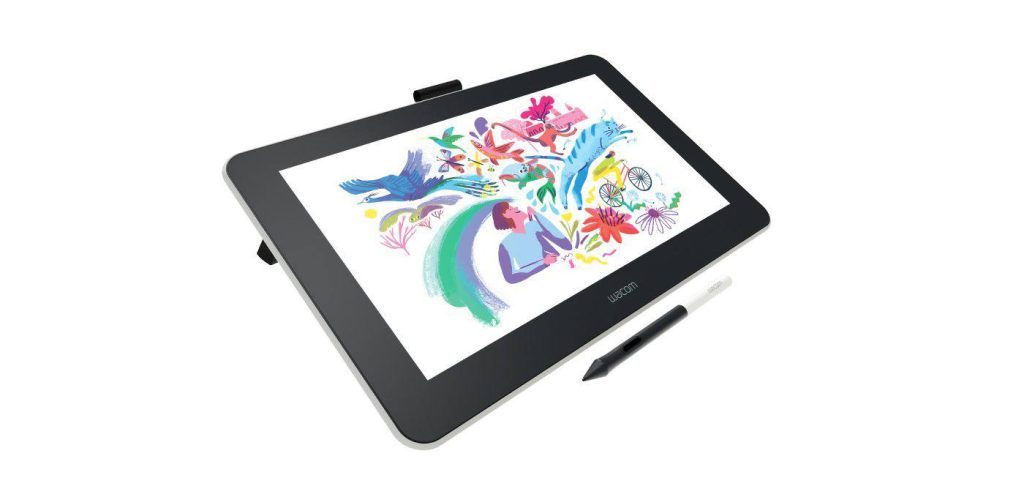
I was sceptical about buying a tablet for work, but I have enjoyed using this one. The Wacom One bundle is an excellent addition as well.
When it comes to digital devices, I usually prefer my computer. So when I started using the tablet instead, I couldn’t believe how much I liked it. Using a mouse and keyboard just seems slower now.
The tablet pen is designed for drawing, and I love drawing with it. It’s made to feel like a natural pen experience, and that’s precisely what you get.
Suppose you want to design something wild for your job or just doodle. In that case, this tablet has got you covered with its compatibility with all kinds of creative programs like Photoshop and Illustrator.
There’s no annoying lag when drawing or dragging things around, which allows ideas to burst out quickly and makes moving things around super efficient. And the battery lasts so long; I can’t remember the last time I charged it.
If you’re more interested in taking notes instead of sketching out designs, many note-taking apps are available (good handwriting recognition, too).
Many people might think such a big screen would make it too heavy to be comfortable in your hand. All these people are wrong because this doesn’t weigh any more than any other product on the market.
You might also expect the product’s weight to slow loading times and drag on your patience. But not this one! This Wacom Tablet is packed with features, including speedy touch sensitivity.
5 – Xencelabs Drawing Tablet
If you need to produce some outstanding work and are a creative professional, then the Xencelabs Pen Tablet is the one for you.
The tablet itself feels high quality. Its surface is made of a specific material with a frosted texture, making it feel like the pen is sitting on paper or something close to it.
It comes with two different-sized pens, so you’ll have flexibility in your work. The more oversized pen is better for sketching and free-hand drawing, while the smaller one works best for lines and fine detail that require precision.
They both have the same level of pressure sensitivity, so again, you won’t have to worry about having a pen that’s not cut out for specific jobs.
An OLED screen on the pen shows exactly what each button does, so there’s no confusion when setting it up to suit your workflow.
The actual pen feels very comfortable in your hand, too. And its case was specially designed to ensure it stays clean and protected from potential damage.
I found the pen easy to use and got accurate results from my writing/drawing, etc.
Both pens can be used at once if that’s how you like to work. All of their buttons are completely customisable and can do whatever function you want them to do.
Many tablet apps are out there, but most don’t let you customise things as much as I’d like them to. Xencelabs Pen Tablet allows you to set up your shortcuts however suits you best and assign custom buttons that will efficiently fulfil your preferences.
This product was also equipped with a great case, keeping its body from getting scratched or damaged even more than it already does.
6 – Apple 12.9-inch iPad Pro
There are many reasons why we love the iPad Pro. But only when I say “we” is it Apple itself.
The iPad Pro is powerful, but it’s also Apple’s first crack at a tablet. So when Apple updates a device’s design and specs, it can do it better than anyone else.
Apple knows that tablets are no longer just for consumption — they’re tools for creation, too. And the company has set out to build the iPad Pro as such.
The new design brings the display closer to the surface, making viewing and use easier. It also features a larger display with a higher resolution.
The 12.9-inch screen is now the same size as the 12.9-inch MacBook. So, if you’ve been considering replacing your laptop with an iPad Pro, now might be as good a time as any.
But like I said, there are many more improvements than appearance. The new iPad Pro is powered by an A12X Bionic chip that includes two performance cores, two efficiency cores and four graphics cores.
The A12X chip is so fast that it can process two full frames of 4K video at 60fps. That’s significantly faster than the previous-generation A12 chip and means that video apps like Netflix and YouTube will be able to stream videos at a much smoother rate.
And by far most impressive is how many hours of battery life Apple claims users will get out of it: With this new model, Apple says users will get up to 10 hours of battery life on one charge compared to 9.5 hours on its predecessor with cellular capabilities.
As for the display, the P3 wide colour has been introduced instead of sRGB on the previous models. This allows colours to look more accurate and enables a more fantastic dynamic range across all types of content benefits for people who work in photography or film editing.
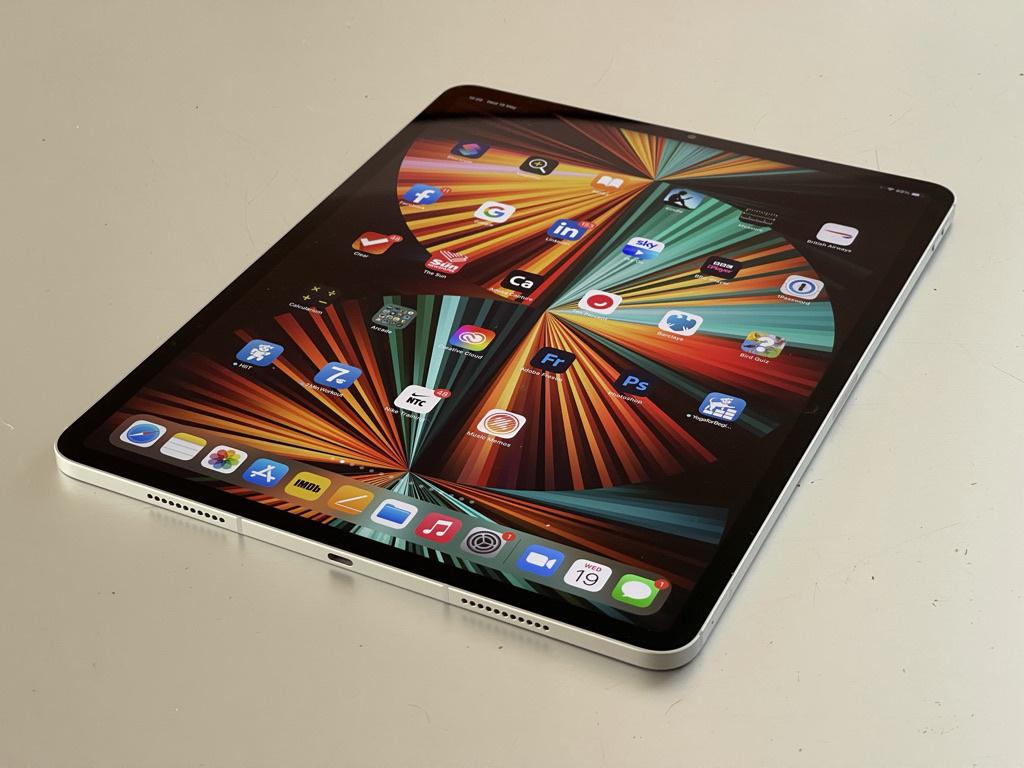
The iPad Pro’s new display will catch your eye from a distance. It uses Mini LED backlighting for the first time on an iPad to provide an incredibly bright and colourful picture. This is also the first iPad that features Apple’s True Tone technology. It measures the colour temperature of your surroundings and then adjusts the screen to match. That makes for a more comfortable viewing experience — less jarring when you turn on your tablet in bed, for example — but it should also enable some exciting use cases.
Apple says that while watching video outside in direct sunlight, it can adjust its output to look better than any other device could achieve at maximum brightness. I haven’t been able to try this feature yet (because of winter), but I’m excited about the potential for sharper movies outdoors.
My favourite new feature here is, without question, Center Stage. Using AI and machine learning algorithms, Apple has put together a simple system that tracks you during video calls using the front-facing camera. If you stay within a specific range and keep your face visible, it’ll follow you wherever you go.
This is great if you’re moving around while cooking dinner or working out near your tablet; instead of manually readjusting every few minutes or spending half your Zoom call off-screen because you moved too far left or right by accident, Center Stage automatically keeps things smooth and steady.
But are there multiple people in the frame? Don’t worry! The Pro checks how many people are present before enabling the feature so that only one person gets tracked at a time.
If there’s still room for one more app on your shiny new iPad Pro 12.9-inch before this thing fills up faster than my phone after a rainy day at Disneyland, let me suggest iMovie. The latest version of Apple’s movie-making software debuted on tablets with this year’s release.
The company promises a smooth experience with iMovie and the A12Z’s eight-core GPU, so you should be able to get work done quickly (and then move on to games or social media browsing, naturally). The more powerful M1 will undoubtedly come in handy for video editing, too — but that’s a story for another day.
If you don’t want to make movies, Apple has another accessory: the new Smart Keyboard. Connecting via Bluetooth, this full-size typing machine includes various buttons and controls. You can use it as a regular keyboard when writing articles like this, as a canvas when drawing or scribbling notes with an Apple Pencil or as a gamepad during your lunch break.
Apple also added a new Lightning-to-USB-C cable with iPads and their keyboards in the box. When both devices are plugged into each other through this wire, they charge simultaneously. That way, I never reached for my iPad, only to realise it was dead because my keyboard drained its battery too much last night.
If all of these features sound like just what you’ve been waiting for from an iPad Pro 12.9-inch… well, then there’s not much else I can say! Congratulations!
7 – Wacom Cintiq 22
The Cintiq 22 is currently one of the best graphics tablets out there. It’s a hit with customers for its user-friendly, sleek, responsive touchscreen and accurate pen that works well in dim light.
But it has some downsides: This screen is smaller than the last model’s, though it’s still significantly improved over the previous model. The battery life is shorter (but still plenty long). But the biggest downside is the price — $1,699 compared to $1,299 for a Cintiq 21 Pro.
If you’ve got money to burn and love to create, go for it; the Cintiq 22 boasts all sorts of ports and slots: two USBs, a headphone jack, an SD card slot, a VGA port and a wireless dongle.
If you’re looking at both models’ prices and feeling faint of wallet, though, don’t worry. Look into the slightly bigger display size (and longer battery life) of a Cintiq 21 Pro instead.
8 – Microsoft Surface Pro
The Surface Pro can be a great device, but when I got my hands on it, it was starting to age in the market. However, this is where Microsoft began to learn.
Microsoft’s latest tablet combines laptop-like power with tablet-like flexibility. It’s pricey, and its specs are high-end. But the tablet market is flooded with cheaper alternatives that’ll do you just as well on your daily commute or during a Netflix binge.
The 13.5-inch touchscreen has a 3:2 aspect ratio and a full HD resolution of 2160×1440 pixels – the same as Apple’s iPad Pro. So, photos look tremendous, and watching videos is a treat.
Its fourth-generation Intel Core i5 processor packs plenty of punch for most users’ needs, running Windows 10 Pro without stuttering or slowdowns. And thanks to that powerful chip inside, you can play games and multitask across multiple windows without things grinding to a halt.
The Surface Pro also boasts an Intel Core i5-7300U processor running at 2.6GHz and two cores with Intel HD 620 graphics. In practice, this means it’s much more extensive than its predecessors.
In terms of specs alone, this makes it one of the fastest devices in our round-up – only narrowly beaten by the Huawei MateBook X.
Two configurations are available: one provides a paltry 64GB of storage while the other doubles that to 128GB (albeit for another £100).
Both come with a fourth-generation Intel Core i5 or i7 processor and have four cores running at up to 4GHz each.
The Surface Pro is a tablet, not just an ordinary laptop, from which you can detach the keyboard to make it into a tablet.
Although it seems like any other tablet, the Surface Pro comes with a kickstand, which makes it extremely easy to use as a laptop. Just put the thing on your table and use it like a laptop.
Other tablets typically come with low-power chips. The Surface Pro, however, has a 4th generation Intel Core i5 processor powered by a separate graphics card, so that’s pretty cool.
The battery life of this device lasts for nine hours. While that may sound like a lot, how many things can you do in nine hours?
9 – XP-PEN Deco Pro
The XP-Pen Deco Pro is a stylus for people who want to create. It’s the best stylus for sketching and painting and is pretty affordable.
XP-PEN has won design awards, but it’s for their Deco Pro pen this time. We had to give them credit; the shape of this thing is so ergonomic that you’ll be comfortable using it all day.
The roller wheels are great, they’re easy to use, and they feel good. You can also use the Deco Pro for writing; its sturdy build is a nice feature.
It feels solid in your hand and doesn’t get uncomfortable after hours of use. The pen holder is a nice touch, too; it’ll keep the Deco Pro secure when you’re not using it.
You really couldn’t ask for much more from a device like this. The XP-Pen Deco Pro is recommended as the best stylus for sketching and painting at an affordable price.
10 – HUION Kamvas 22 Plus
The HUION Kamvas 22 Plus is the best choice if you’re looking for a drawing monitor.
The full laminated screen technology of Kamvas 22 Plus prevents ghosting. You can also expect the most accurate colours from this top-notch product.
When you draw using the pen, the cursor moves just as you predict it would. Its system has no lag and almost no delay, so your experience will be unique.
The excellent contrast ratio of Kamvas 22 Plus makes colours pop out vividly and look realistic. Moreover, the large viewing angle lets you see what’s on screen, even from an oblique angle.
This model is straightforward to set up and use. It’s equipped with a USB-C cable that seamlessly connects with a computer. You can also purchase a full-featured USB-C to USB-C cable to connect with an Android tablet.
On top of that, it features an adjustable stand. Use this included standing to position your device perfectly before starting your work of art.
Kamvas 22 Plus gives you more than just high-quality features; it was built for convenience and ease.
Choose this product if you want to have an enjoyable working experience with a drawing monitor.
Wrapping Up the Best Tablets for Drawing
The world of tablets is a strange one. Seriously, it’s like its own alien ecosystem. Take touchscreens, for example. People love using them, and they keep gaining popularity. You’d think people would get tired of touching their computers by now, but nope! A new class of users who seem to enjoy the touchscreen experience more than anything else have emerged.
So, if you’re an artist or designer, this is your time to shine! There are many great options for you to pick up and start creating with today. The best thing about most of these tablets is that they’re lightweight and portable, making it easy to take your art wherever you want.
In conclusion, the ideal tablet for drawing and design should have a high-resolution screen, good stylus support, plenty of file format options, and access to a wide range of software programs.
Jump on this trend today and buy yourself a tablet. Who knows what kind of creative week you’ll be in store for?
Best Tablets for Drawing FAQs
What is the most crucial factor when choosing a tablet for drawing and digital art?
The display quality is arguably the most critical factor. Look for a tablet with a high-resolution, colour-accurate, and laminated display that minimises parallax (the space between the pen tip and the line you see on the screen). This ensures a precise and natural drawing experience.
Are there any tablets specifically designed for artists and illustrators?
Several manufacturers like Wacom, Huion, and XP-Pen offer tablets explicitly tailored for artists and designers. These often come bundled with styluses that support tilt sensitivity and have excellent pressure sensitivity for natural stroke variations.
Do I need a tablet with a built-in display, or can I use one without a screen?
Both options are viable. Tablets with built-in displays (e.g., iPad Pro, Surface Pro) offer a direct drawing experience. In contrast, tablets without displays (e.g., Wacom Intuos, Huion tablets) are more affordable and work by connecting to a computer. The choice depends on your needs, budget, and portability requirements.
What level of pressure sensitivity should I look for in a drawing tablet?
Generally, higher pressure sensitivity levels (e.g., 8192 levels or higher) are preferable as they allow for more accurate and expressive lines and shading. However, even tablets with 2048 pressure levels can produce good results skillfully.
Are there any affordable options for students or beginners?
Yes, several budget-friendly drawing tablets are suitable for students and beginners, such as the Wacom Intuos series, Huion Inspiroy series, and XP-Pen Deco series. These typically range from $50 to $200 and offer an excellent introduction to digital drawing without breaking the bank.
What software comes bundled with drawing tablets, and do I need to purchase additional programs?
Many drawing tablets have basic software suites like Corel Painter Essentials, Autodesk Sketchbook, or proprietary programs. However, for more advanced features and capabilities, you may need to purchase industry-standard software like Adobe Photoshop, Corel Painter, or Clip Studio Paint.
Can I use a drawing tablet or tablet with my smartphone?
Some drawing tablets can connect to smartphones and tablets via USB or Bluetooth. This lets you use the stylus for sketching, note-taking, or photo editing on your mobile devices. However, not all drawing tablets support this functionality, so check compatibility before purchasing.