Branding Agency Stack
The Brand Vault: Architecture for Premium Creative Firms
Stop competing on pixel speed. Scale your business with an elite branding agency stack. This is the exact collection of operational frameworks, creative engines, digital infrastructure, and physical studio setups engineered to command premium fees and build generational brand equity.




Core Business Strategy Systems
Phase 1: Brand Strategy, Intelligence & Client Discovery Frameworks
Elite visual assets are useless without a rock-solid corporate foundation. These proprietary playbooks eliminate client obscurities, protect your project margins, and position you instantly as an expert business partner rather than a creative layout editor.
The AI Guardrail Protocol
A structured prompt architecture built to force large language models to write with human strategic empathy.
This complete system bypasses generic AI output by enforcing strict contextual limits. It injects a deeply customised tone of voice into your backend operations, keeping all automated communication, strategic positioning, and copywriting perfectly aligned with human design values.
The Ethical Brand Persona Framework™
A structured diagnostic system for crafting corporate identities that resonate with humans and rank in semantic engines.
This deep playbook moves projects from initial ambiguity to a crystal-clear market position in under two hours. Built upon years of boardroom experience, it structures your brand assets for maximum cognitive ease, forming an elegant cornerstone of your core strategy stack.
The Anti-Commodity Strategy Kit
The definitive operational roadmap for escaping downward price competition and protecting high-ticket creative margins.
Learn the exact positioning systems required to pivot your client vocabulary away from basic layout line-items and toward true business transformations. This kit details how to turn down low-margin projects, allowing you to focus completely on long-term client results.
The Brand Strategy Playbook
Stop Selling Logos and Start Architecting Market Dominance.
When you’re selling brand strategy, you’re a business partner.
You receive the 30-Slide Discovery Deck.
Turn your creative work into an intangible financial asset your clients will actually fight to protect.
The AI Brand Architect
This tool contains 25 high-performance prompts for modern agencies.
These are 25 high-velocity scripts designed to act as your Junior Creative Director.
Ensure your brand narratives are engineered to be recognised as “Entities” by Google Gemini and search algorithms.
Transparency Note: Some links below are affiliate links. We may earn a commission if you make a purchase through them, at no additional cost to you. We only recommend tools we actually use.
High-Performance Design Assets
Phase 2: Visual Identity Execution & Core Vector Engines
Top-tier corporate strategy demands precision execution. We build modular, responsive visual identities using industry-standard engineering tools that seamlessly handle massive production demands.
Adobe: The Complete Design Toolkit
Adobe Creative Cloud provides everything you need to create, collaborate, and deliver exceptional design work. As the industry gold standard, it powers the world’s leading studios with tools built for modern workflows.
Photoshop, Illustrator & InDesign: For editing, vector graphics, and professional layouts.
Seamless Integration: Flawless work between apps.
Cloud Storage: Access your work from anywhere, anytime.
Team Collaboration: Share and review projects effortlessly.
Cross-device Sync: Start on desktop, finish on mobile.
Transform your creative process with the flexibility and innovation only Creative Cloud delivers.
The Ultimate Tool for Logo Delivery
Transform the delivery of logo requests from hours of tedious work into a streamlined 5-minute process.
This powerful tool automatically generates and exports comprehensive logo packages with over 200 professionally organised files, eliminating the manual grunt work that drains your energy.
Foolproof Organisation: Creates a structured folder system for seamless client handoffs.
Efficiency: Eliminates repetitive exports.
More Freedom: Frees up valuable time for actual design.
Say goodbye to administrative tasks—because your creativity deserves better than paperwork.
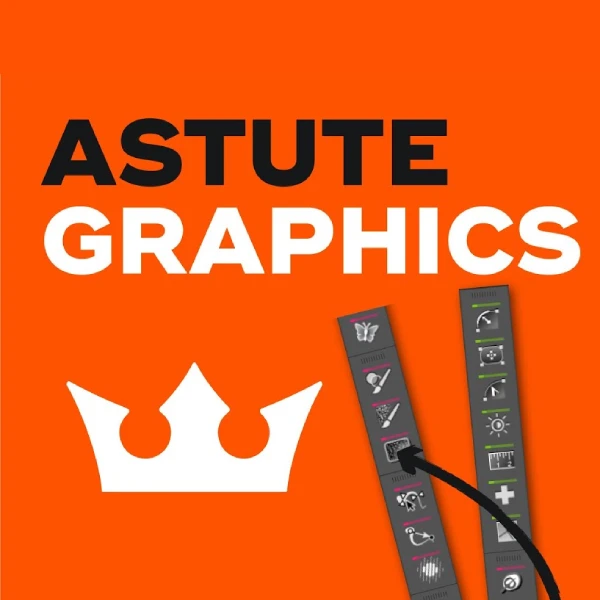
Transform Illustrator with 21 Plugins
Unlock Adobe Illustrator’s hidden potential with professional-grade plugins that add powerful capabilities Adobe should have included from the start. Astute Graphics transforms your workflow with tools designed for efficiency and precision.
Phantasm & MirrorMe: Live colour control and instant symmetry.
VectorScribe & CADtools: Precision path editing and technical drawing.
Massive Time Savings: Complete tasks in minutes, not hours.
Seamless Integration: Functions like native tools.
Discover workflow capabilities you never imagined possible.
Download Quality Design Assets
Elevate every project with exceptional design assets. Access a curated marketplace of over 250 million premium fonts, graphics, templates, and photos—all crafted by talented independent creators who understand what modern design demands.
Everything Your Creative Projects Need
✓ Unique fonts – Typography that sets your work apart
✓ Premium graphics – Illustrations and icons with personality
✓ Professional templates – Ready-to-customise layouts for any project
✓ High-quality photography – Stunning imagery that tells your story.
Discover Your Perfect Font
Complete font families that elevate every design project. MyFonts offers the most comprehensive collection of professional typefaces available—perfect for designers who understand that exceptional typography distinguishes great design from good design.
Unmatched Typography Selection
✓ World’s largest library – Thousands of font families from renowned foundries
✓ Complete families – Full character sets, weights, and styles included
✓ Multi-platform support – Perfect for print, web, and product design
✓ Professional licensing – Commercial use covered for client projects
Scalable Brand Empowerment
When your team needs to move fast without breaking your brand. We can build your custom Canva Pro Brand Kit, ensuring every social post, pitch deck, and flyer remains perfectly aligned with your visual identity—no design degree required.
- Team Collaboration – Eliminate “off-brand” content by sharing assets and implementing approval workflows.
- Turnkey Brand Kits – Your logos, fonts, and palettes locked in for total consistency.
- Pro-Grade Templates – Bespoke, agency-designed layouts that keep your feed looking premium.
Enterprise Web Deployments
Phase 3: Web Architecture, Premium Hosting & Brand Infrastructure
Slow server responses ruin the user experience and undermine digital equity. We secure our design assets, digital portfolios, and corporate web engines on ultra-fast, modern cloud hosting frameworks.
Reliable Web Hosting for Creatives
Exceptional performance meets unmatched reliability. Having experienced zero downtime during our partnership, Krystal is the definitive choice for all Inkbot Design projects.
Lightning-fast Performance: Pages load instantly.
Rock-solid Reliability: A zero-downtime experience.
Award-winning Support: A genuinely helpful customer service team.
Industry Recognition: Named amongst the UK’s top hosting providers.
Managed WordPress Hosting for Agencies
When your website performance directly impacts your reputation. Kinsta delivers enterprise-level hosting that ensures your creative portfolio loads instantly, stays secure, and converts visitors into clients, because slow websites kill first impressions.
✓ Lightning-fast loading – Sub-second page speeds that impress clients
✓ Rock-solid security – Advanced protection against threats and downtime
✓ SEO optimisation – Server performance that search engines love
✓ Higher conversions – Fast sites turn visitors into paying customers
High-Conversion Shopify Design & Strategy
When your storefront is the only thing standing between a browser and a buyer. Inkbot Design builds bespoke Shopify experiences that blend aesthetic excellence with frictionless functionality.
- Scalable Architecture – Expert setup and app integration that grows alongside your ambitions.
- Bespoke Brand Integration – Custom designs that reflect your unique identity, not a generic template.
- Conversion-Centric UX – Strategic layouts designed to reduce cart abandonment and increase AOV.
Marketing, SEO & Agency Ops
The operational stack that scales your creative business.
Brilliant design is invisible if no one sees it, and a profitable agency will fail if its backend operations are chaotic. From dominating search engine visibility and building automated email pipelines to managing your accounting and upgrading your skills, these are the intelligence and operational tools required to run a highly profitable creative empire.

All-in-One Marketing Toolkit for Professionals
See exactly what’s working in your market—and why. Semrush provides creative businesses with the competitive intelligence they need to dominate online, featuring over 50 professional tools that reveal opportunities your competitors may be missing.
✓ SEO mastery – Discover keywords that actually drive business
✓ Competitor analysis – See what’s working for others in your space
✓ Content strategy – Create content that ranks and converts
✓ Social media insights – Optimise your social presence for real results

SEO Tools to Improve Visibility
See exactly where you stand in search. Moz delivers the proven SEO tools and data marketers need to increase traffic, rankings, and visibility, removing the guesswork.
Keyword Research & Rank Tracking: Discover high-impact keywords and monitor SERP performance.
Link Analysis: Explore backlink profiles using the web’s most trusted index.
Technical Audits: Identify and resolve issues through comprehensive site crawls.
Smart Metrics: Leverage Domain Authority (DA) and actionable recommendations.

Marketing Platform for Creative Leaders
Know exactly who your true fans are. Kit delivers the powerful email and automation tools creators need to grow their audience and income, without the complexity of corporate systems.
Automation & Email: Create funnels that nurture subscribers and drive 24/7 sales.
Growth & Commerce: Build high-converting landing pages and sell digital products directly.
Smart Targeting: Use flexible tagging to send the right message to the right person.
Start for Free: Grow up to 1,000 subscribers at no cost.
Accounting & Invoicing for Designers
Take the headache out of financial management. QuickBooks transforms complex accounting into simple, automated workflows—perfect for creative businesses and freelancers who want to focus on their craft rather than spreadsheets.
✓ Professional invoicing – Get paid faster with automated reminders
✓ Expense tracking – Capture receipts on the go
✓ Payroll management – Handle staff payments effortlessly
✓ Real-time reporting – Instant insights into your business health

Get Exclusive Deals on Design & Marketing Tools
Identify the tools that grow your business—and get them for a fraction of the cost. AppSumo delivers the curated software deals entrepreneurs need to scale, avoiding endless monthly subscriptions.
- Risk-Free: Enjoy a 60-day money-back guarantee on every purchase.
- Exclusive Lifetime Deals: Pay once for top-rated software and use it forever.
- Vetted & Curated: We partner with innovative tech companies to bring you the best tools.
- Stop Monthly Fees: Build your toolkit without draining your budget on recurring costs.
Online Courses to Boost Your Design Skills
Expand your expertise without leaving your desk. Udemy connects you with world-class instructors teaching practical skills that directly impact your creative business, from advanced design techniques to marketing strategies that actually work.
✓ 262,000+ courses – Find training on virtually any creative or business skill
✓ Expert instructors – Learn from industry professionals, not just theorists
✓ Self-paced learning – Fit education around your busy schedule
✓ Lifetime access – Revisit courses whenever you need a refresher
Physical Studio Stack
Phase 4: The Physical Studio (The Practitioner’s Setup)
To finalise your Operating System, we’ve selected the definitive “Best in Class” physical assets. These aren’t generic office supplies; they are high-performance tools engineered for Brand Equity Architects™ who demand absolute precision.
Desktop Monitor
Apple Studio Display
Second to none: a premium-quality display. It’s the 5-star product you’d expect at this price, and it puts competitors to shame with incredible sound, volume & camera seamlessly integrated.

Laptop
Apple MacBook Pro 16-inch
An absolute beast. Stunning display, great battery life, and power that crushes creative work. Gets warm under load and is pricey to upgrade, but it’s my dream daily workhorse.

Drawing Tablet
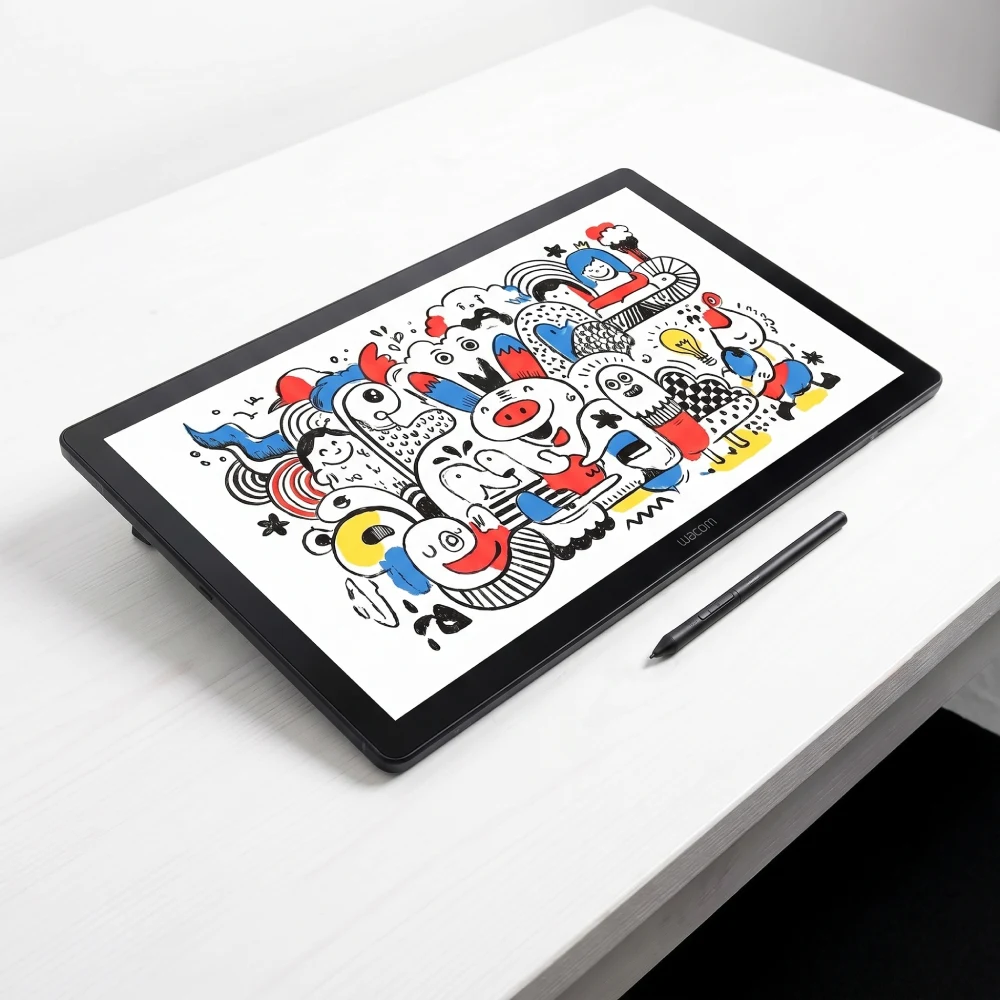
Wacom Cintiq 24 Touch
The Wacom Cintiq is a creative powerhouse. Sharp display, smooth Pro Pen 3, and intuitive multi-touch that feels like drawing on paper. Super responsive, though it’s hefty and pricey.
Professional Printer
Canon imagePROGRAF
Upgraded from my Canon PIXMA iX6850, which is getting old. Excellent image quality up to A3. Cheap printers have become terrible in terms of build quality, but this is much better.
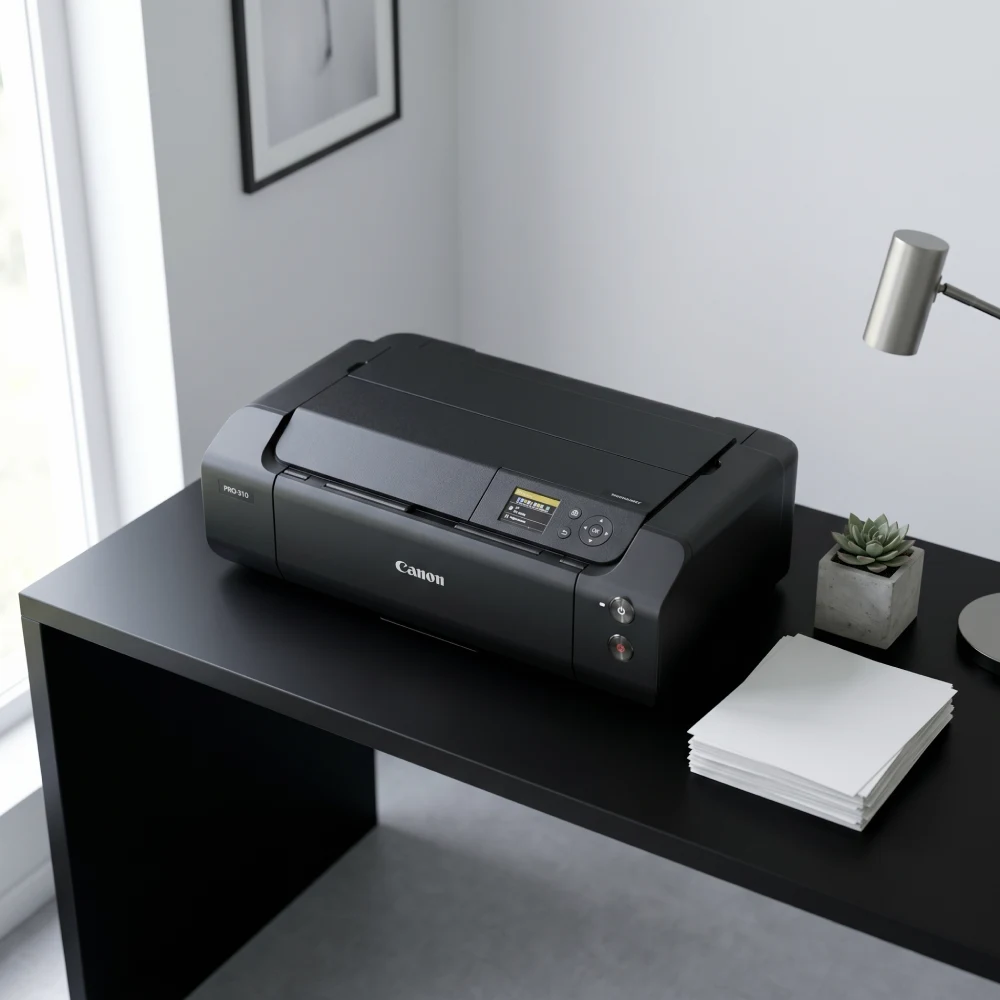
Photo & Video Camera
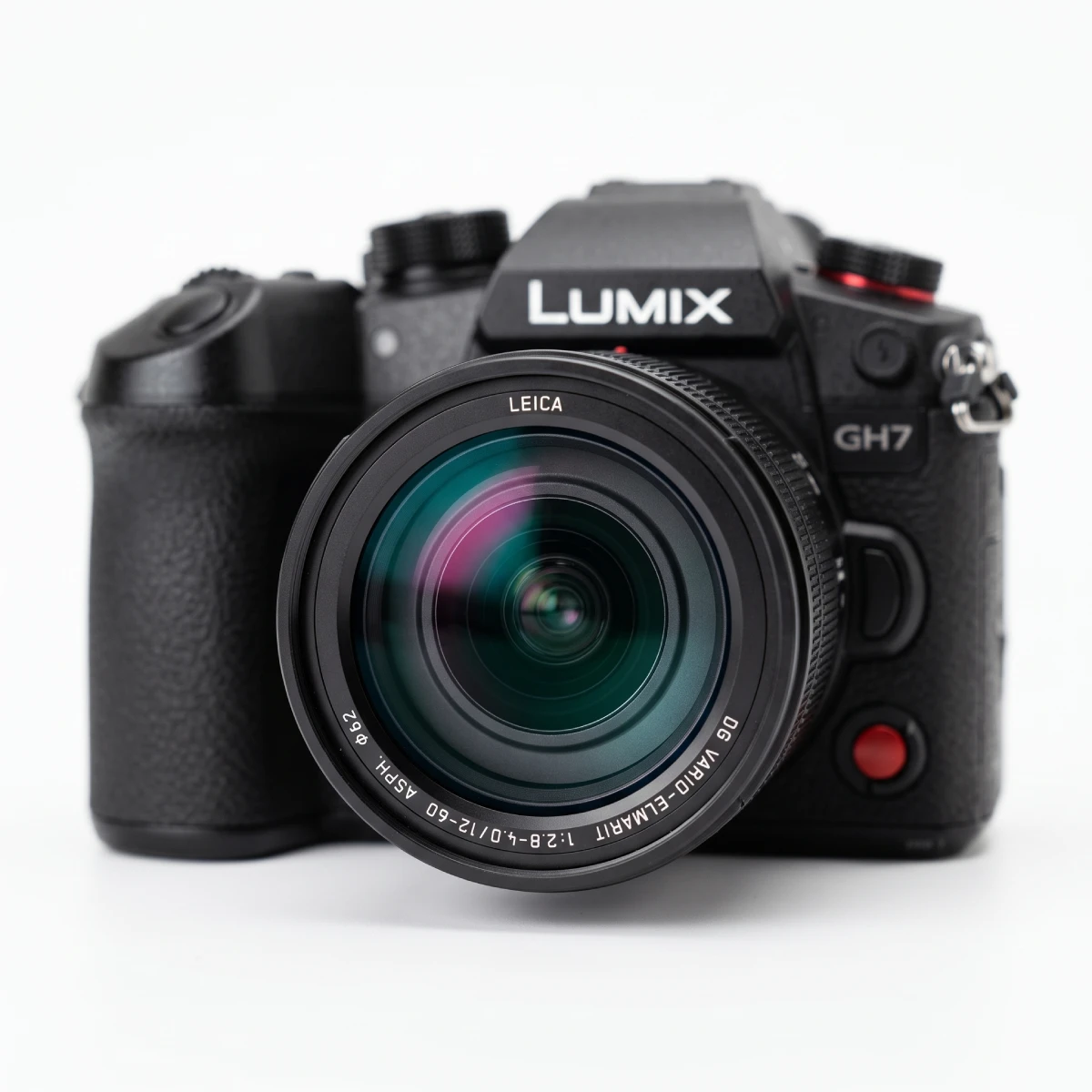
Panasonic LUMIX GH7
The strongest single-camera pick for amazing photos and excellent 4K video, especially if video matters as much as stills.
Headphones
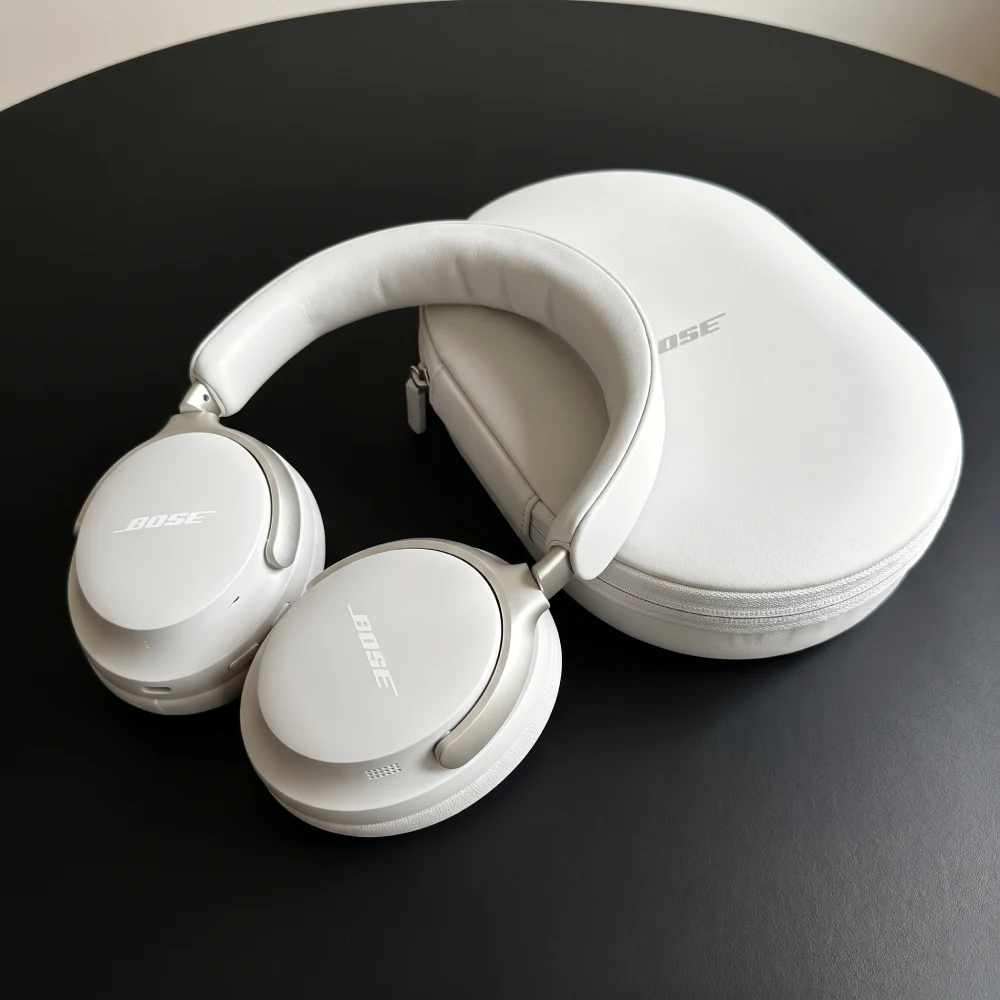
Bose QuietComfort Ultra
Comfort for all-day wear, and a punchy, rich sound that works well with both music and speech. Battery’s solid, calls decent – a total travel essential and worth every penny.
Brand Strategy Books
The Strategist’s Shelf
Before a pixel moves, you need a point of view. These books shape how we find the angle, claim the space, and make a brand impossible to ignore.
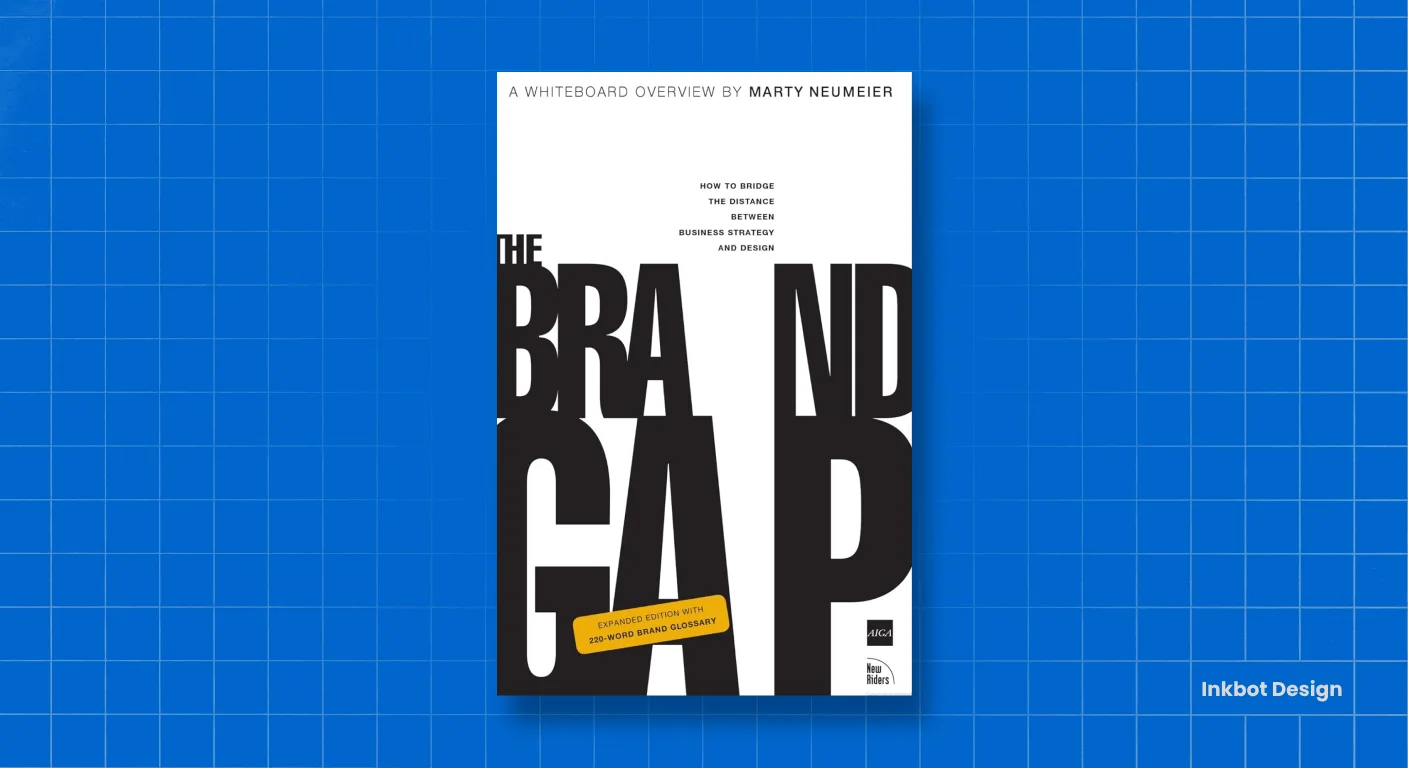
The Brand Gap
The book I’d hand to any client who thinks branding is just a logo. Neumeier draws the line between strategy and creativity, then shows you why a brand only works when both sides shake hands. Short, sharp, and quietly profound.
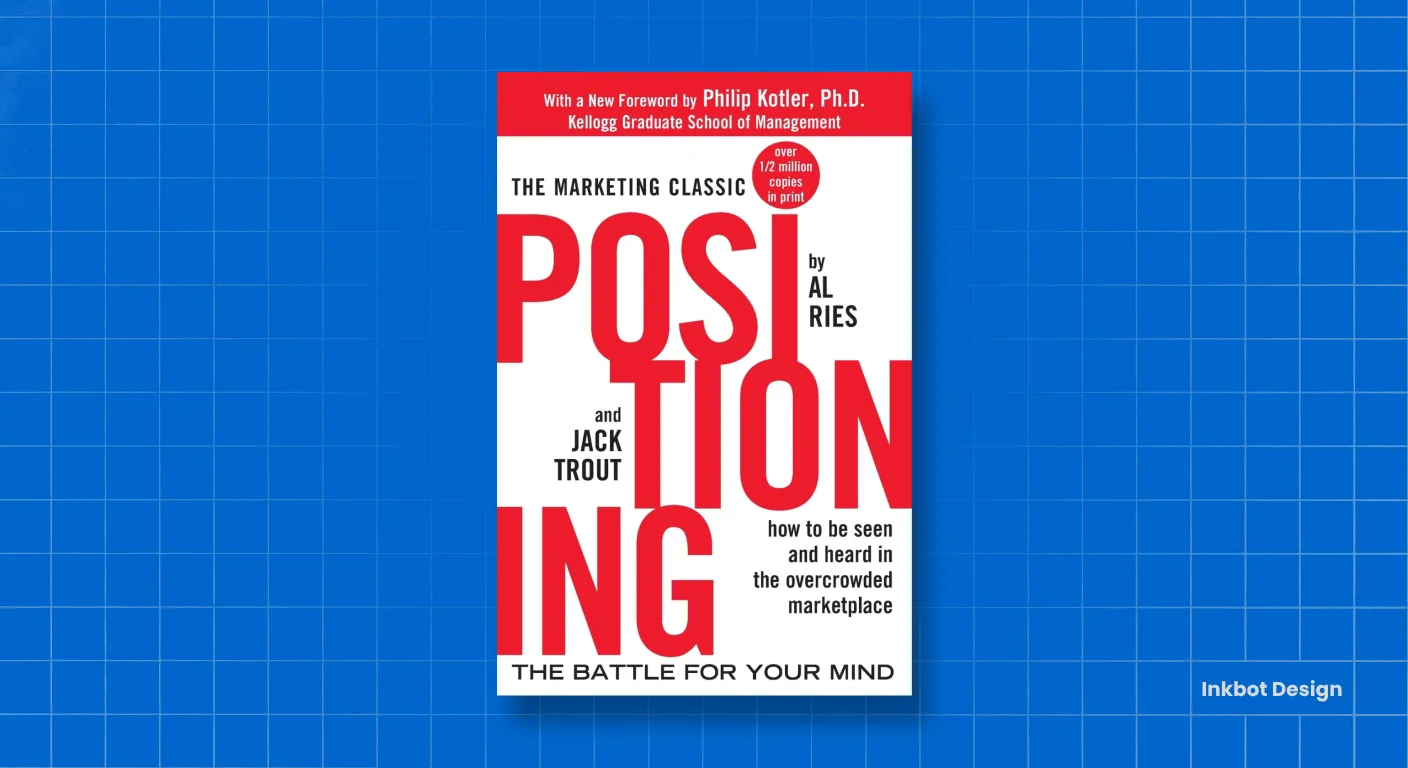
Positioning
Decades old and still ruthlessly relevant. The core idea, that you win by owning a space in someone’s mind, not by shouting louder, underpins nearly every strategy session we run. If you read one book on this list, start here.
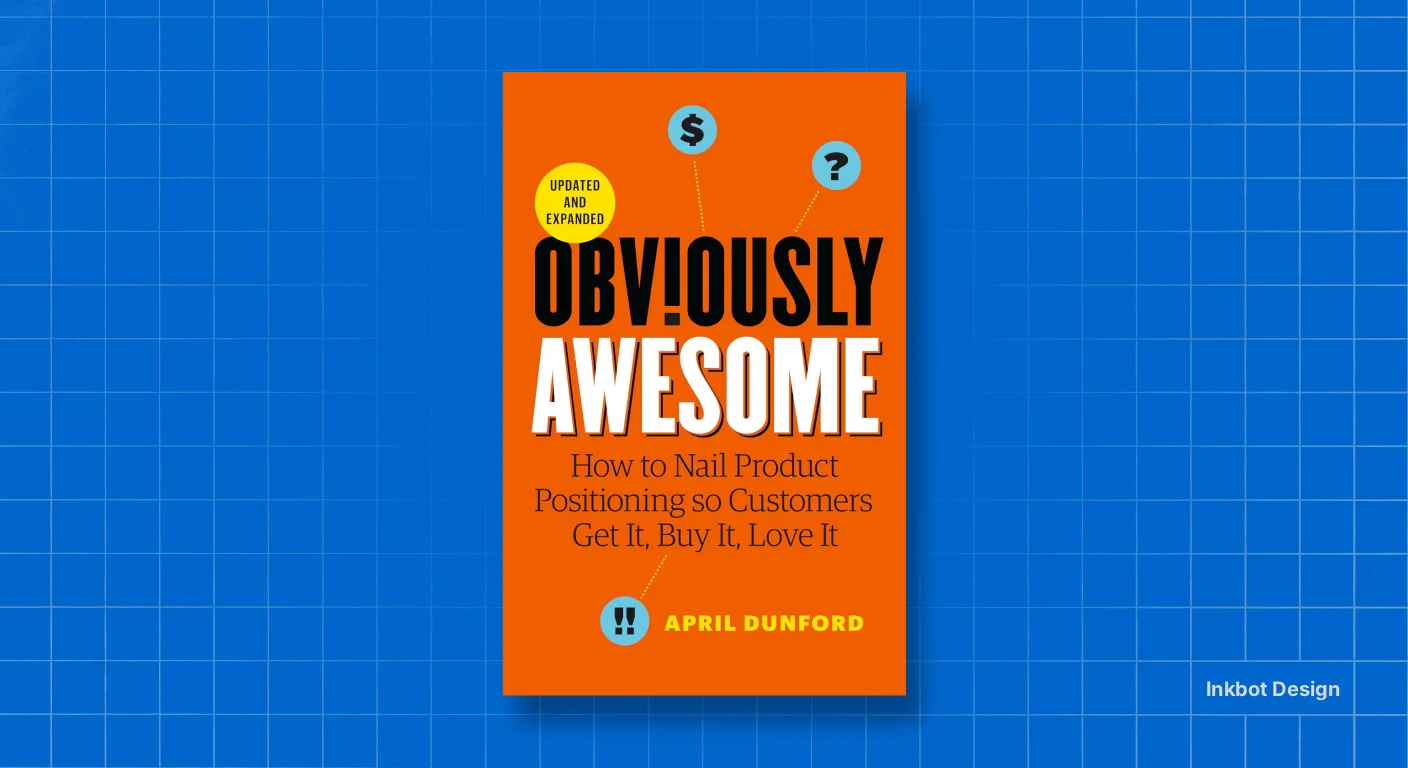
Obviously Awesome
Positioning is finally made practical. Dunford turns a fuzzy, often-skipped step into a repeatable process, and it’s reshaped how we frame professional services firms, which all sound identical. The chapter on context alone is worth the cover price.
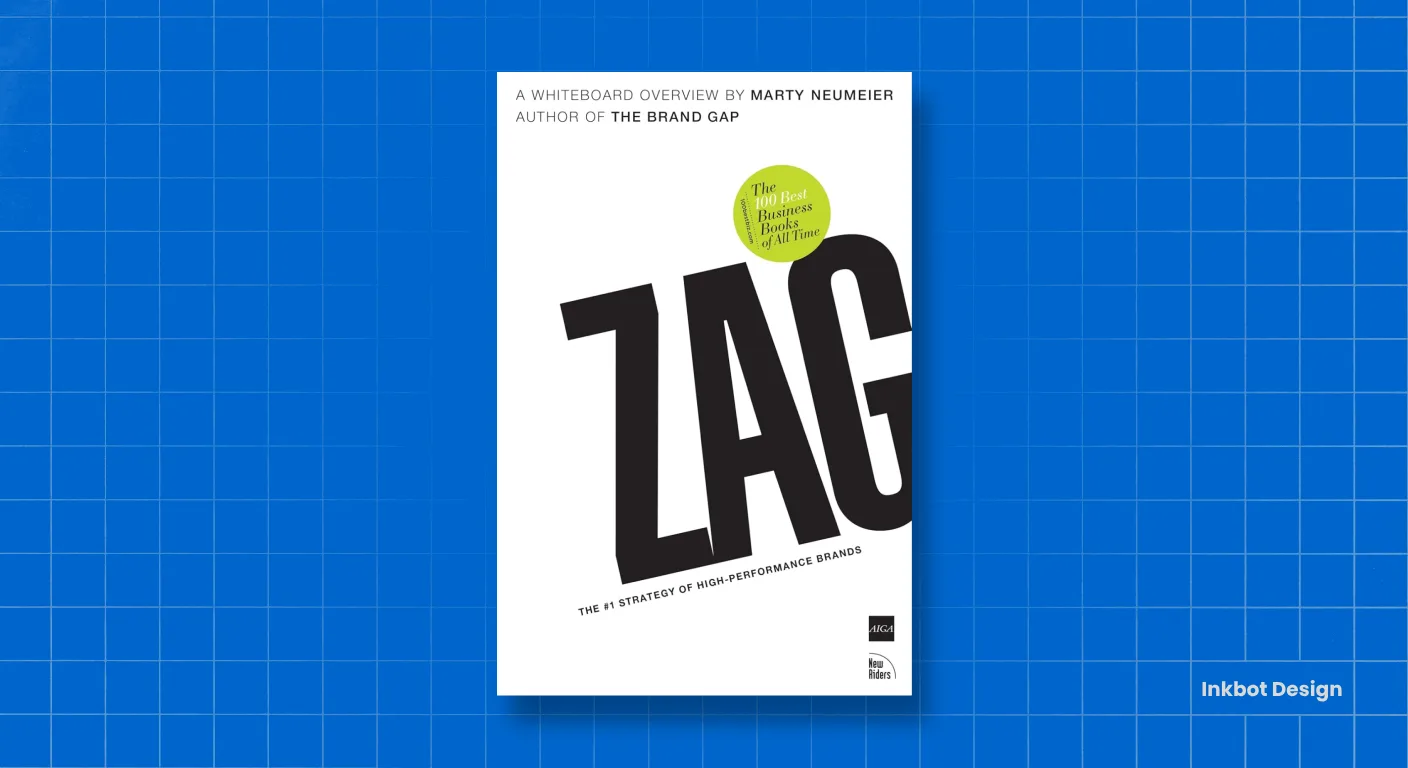
Zag
“When everybody zigs, zag.” A deceptively simple premise that we lean on constantly. In crowded categories (law, accountancy, consultancy), radical differentiation isn’t a luxury; it’s survival. This book gives you the courage to choose a lane.
Brand Identity Books
Form Follows Meaning
Identity is where strategy becomes something you can see and feel. These are the references we return to when turning a brand idea into a system that actually holds together.
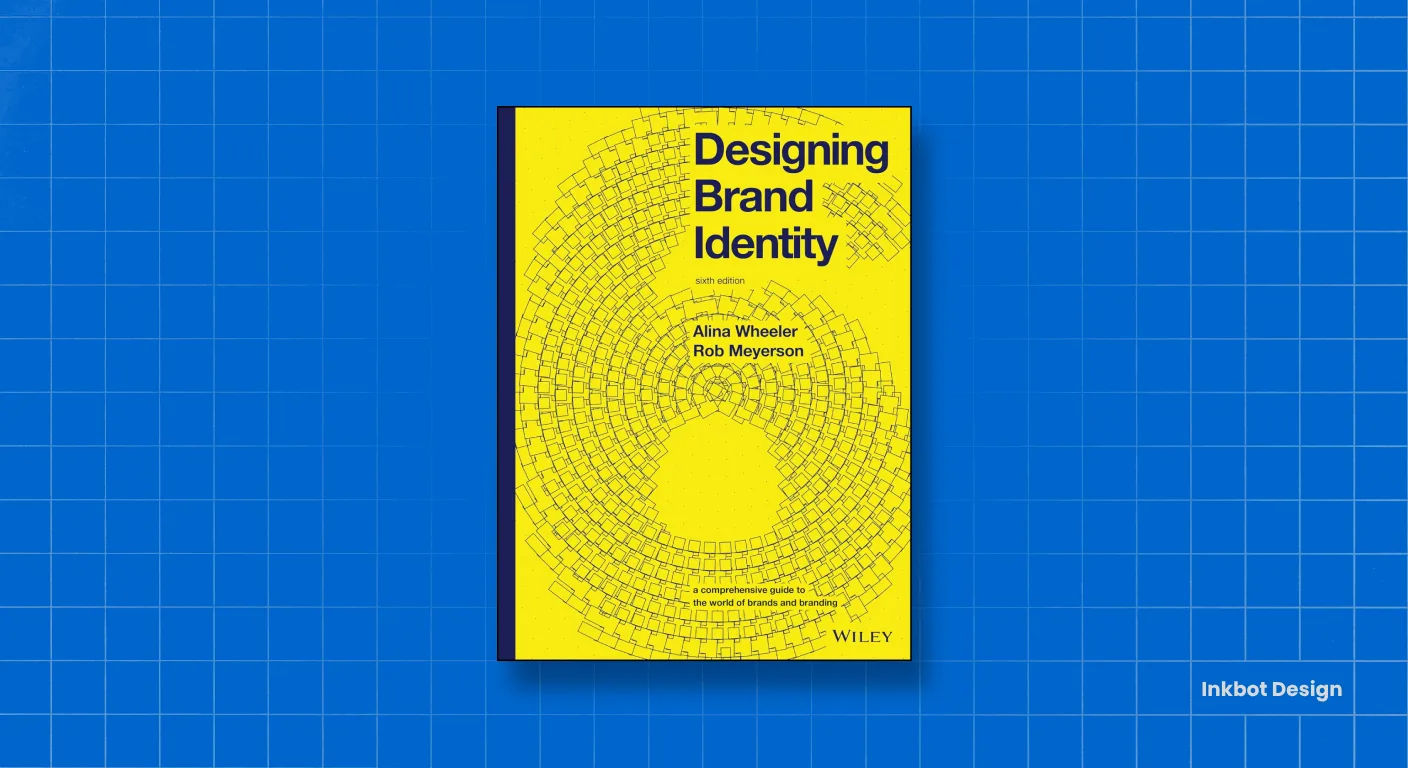
Designing Brand Identity
Our process bible. Wheeler maps the entire journey from research to rollout without ever losing the thread. When a junior designer asks how a real identity project is run, this is the book I point them to. Comprehensive, structured, indispensable.
Identity Designed
Where Wheeler gives you the framework, Airey gives you the proof. The case studies are brilliant for showing clients what identity work looks like in the wild. We use it constantly to set expectations and raise ambition.
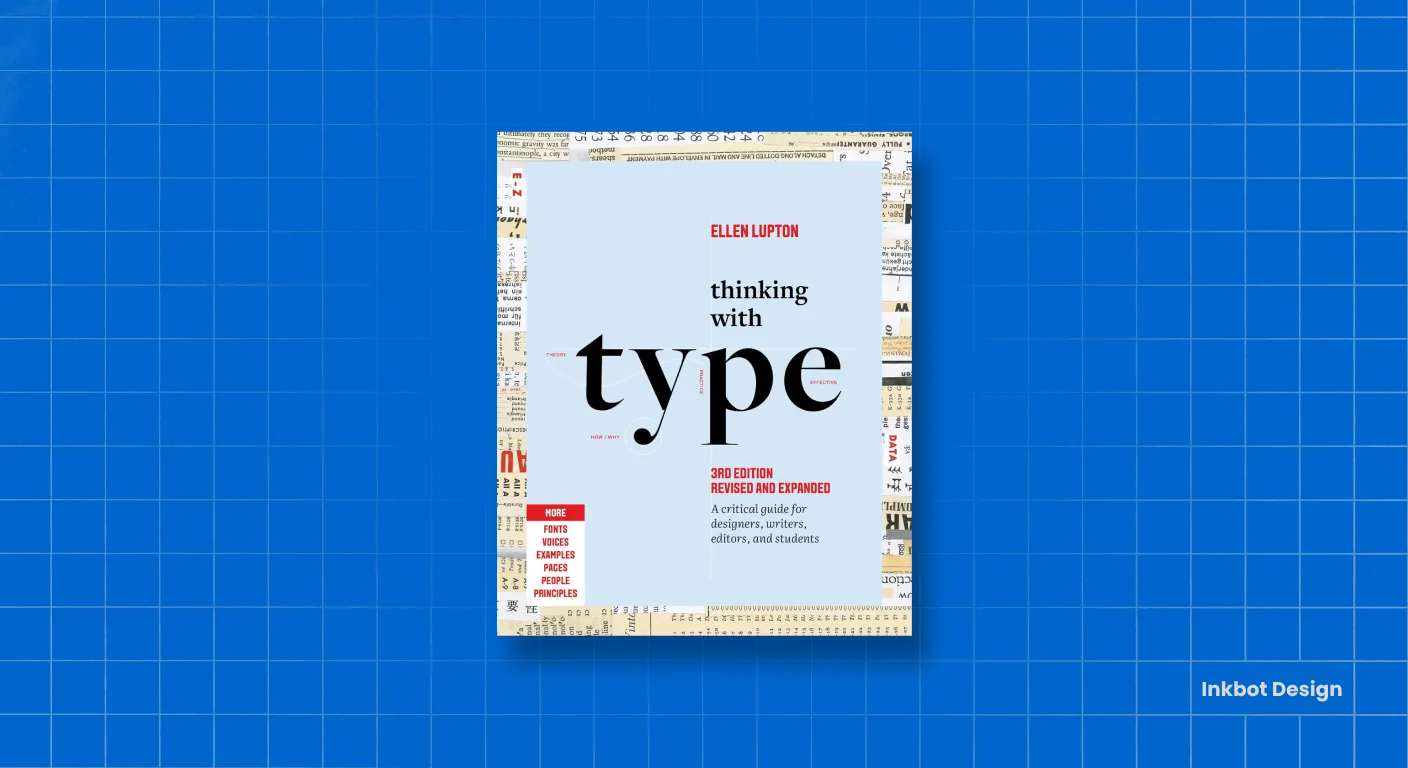
Thinking with Type
Typography is 90% of design, and most people get it wrong 90% of the time. Lupton’s the clearest voice on the subject – rigorous without being precious. We’ve worn our copy thin. Essential for anyone who wants their words to carry weight as well as meaning.
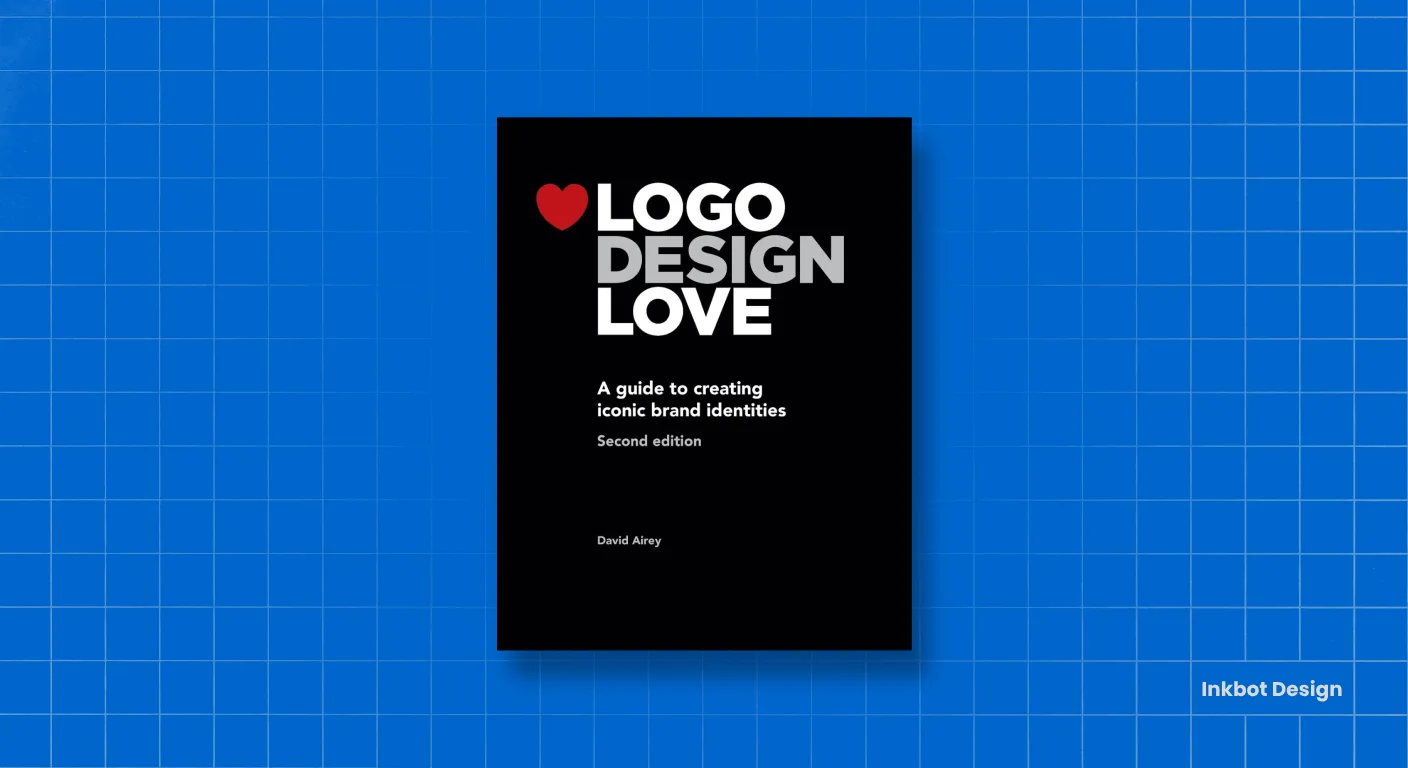
Logo Design Love
The friendliest entry point to serious logo thinking. Airey strips away the mystique and shows why the best marks are simple, considered, and built to last. Brilliant for clients who need to understand why a great identity isn’t drawn in an afternoon.
Brand Agency Books
The Persuasion Engine
Brands don’t win on looks alone: they win on how they make people think, feel, and decide. These four shape how we move audiences and how we run a healthier agency in the process.
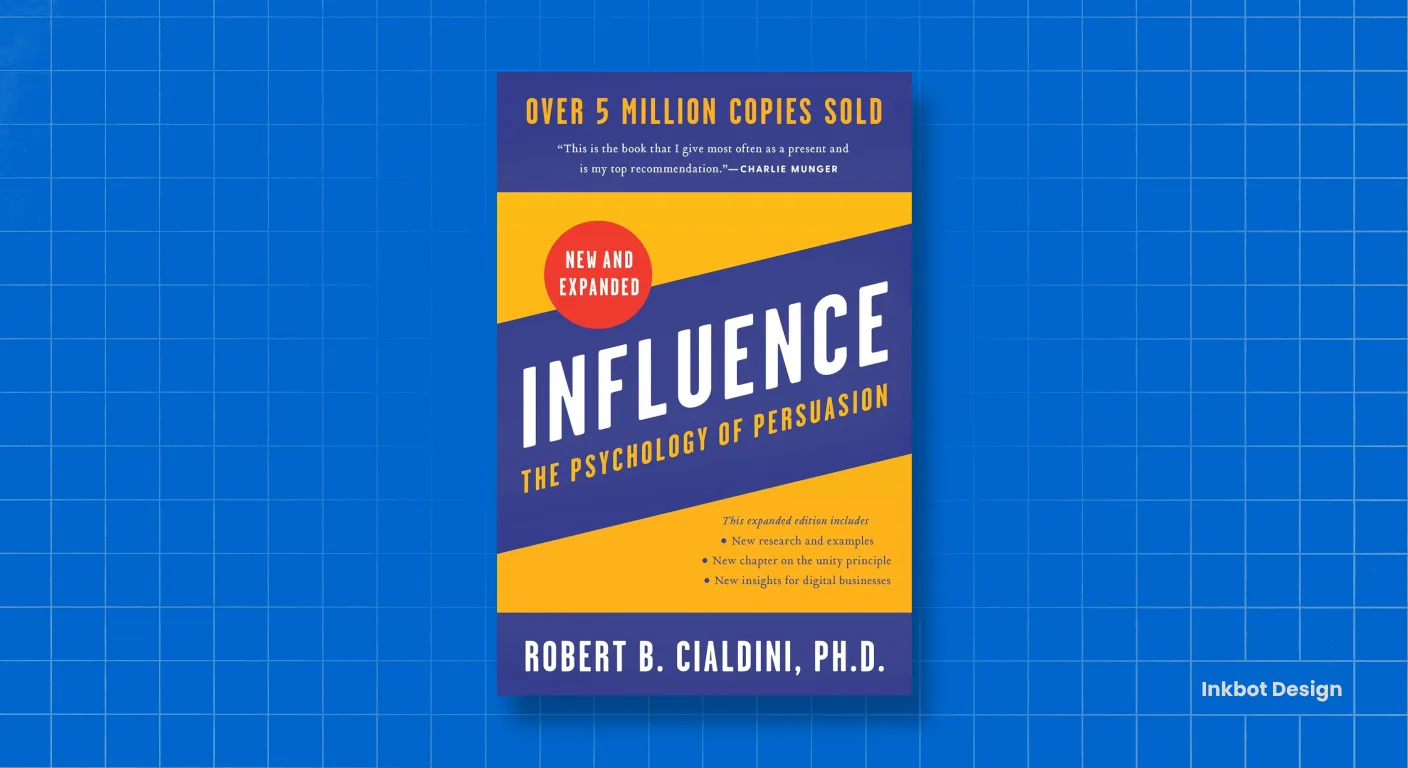
Influence
The closest thing marketing has to a rulebook on human behaviour. Cialdini’s 6 principles show up in every campaign, every piece of copy, every pitch. Understand them, and you’ll never look at persuasion the same way again. Required reading, no exceptions.
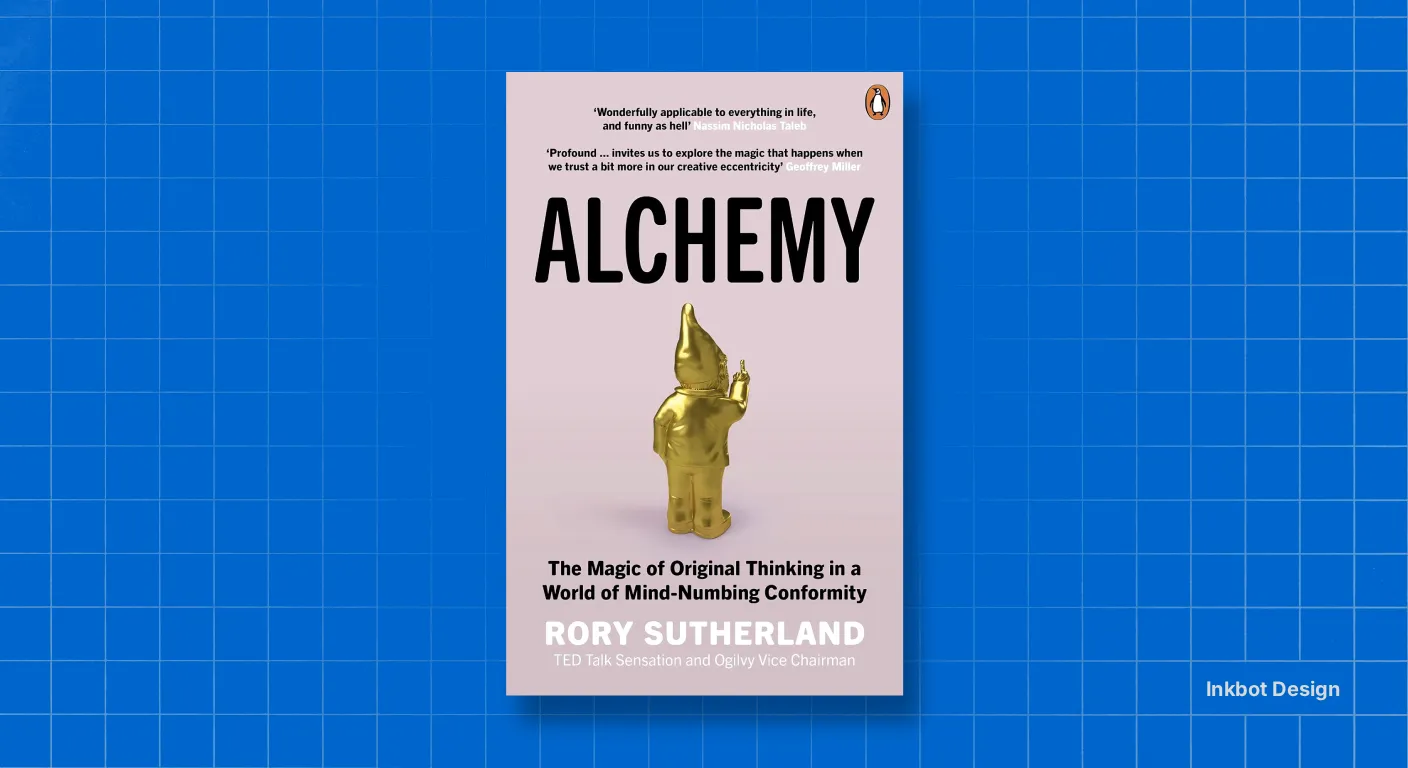
Alchemy
The most entertaining book on this list and one of the sharpest. Sutherland argues that logic is overrated and that brands win through psychology, not spreadsheets. Endlessly quotable, gloriously contrarian, and full of ideas you’ll steal for years.
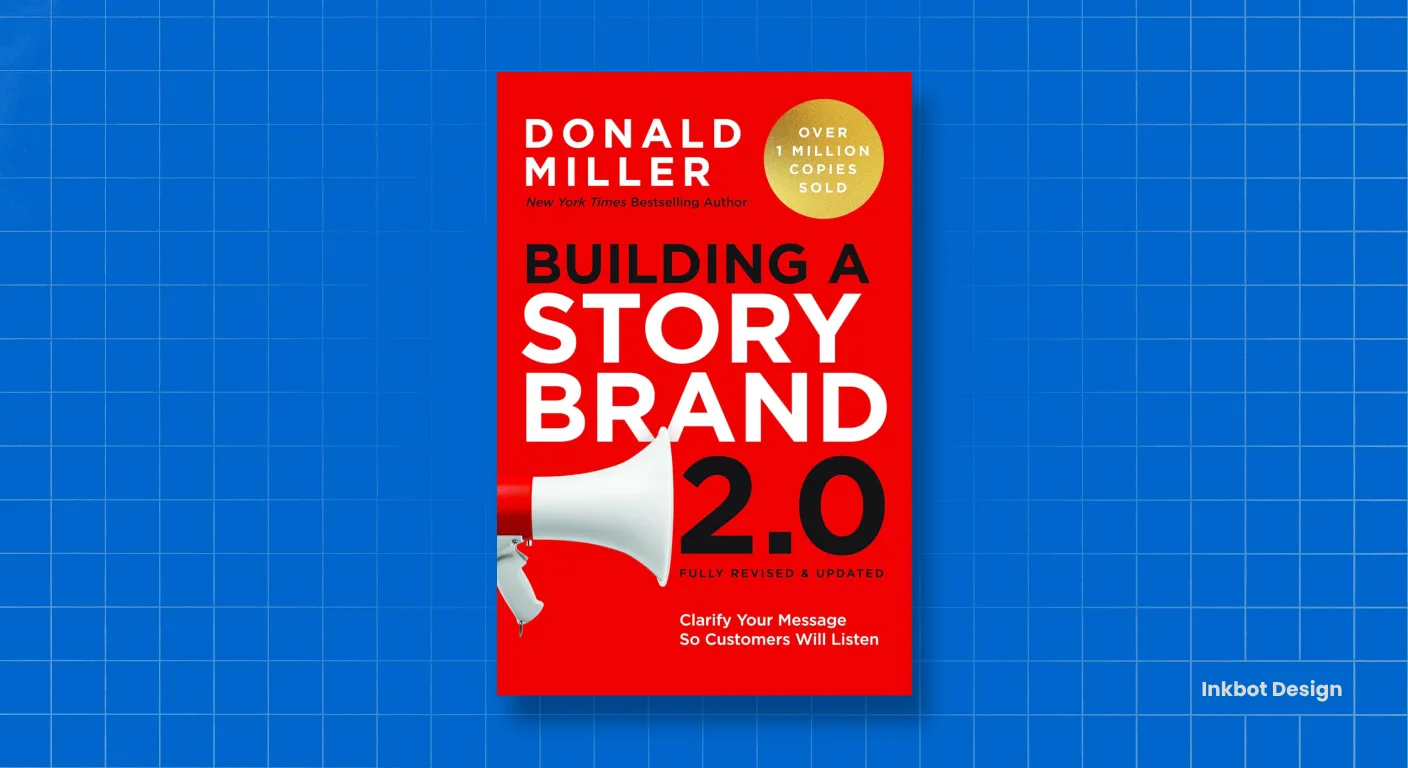
Building a StoryBrand
The fastest way to fix muddled messaging. Miller’s framework – make the customer the hero, not the brand – has rescued more positioning statements than I can count. We reach for it whenever a client’s message is doing too much and saying too little.
The Win Without Pitching Manifesto
Less about branding, more about respecting your own craft. Enns reframes the agency–client relationship so you lead from expertise rather than beg for the work. It changed how we run Inkbot. Every studio owner should read it twice.
Great brands aren’t built in isolation. A logo is a start, but a system is a strategy. We bridge the gap between how you look and how you grow, crafting a cohesive experience that captivates your audience and keeps them coming back. Let’s build something that works as hard as you do.
Get a Strategic Proposal →Insight
Beyond the “Pixel Pusher” Obsolescence: Why Strategy Scales
The branding industry has reached a terminal inflexion point. Generative AI can produce high-fidelity concepts in seconds, rendering “visual execution” a baseline commodity rather than a competitive advantage.
Designers stuck in the “Better Trap” (competing on price or turnaround speed) act as vendors. Vendors are viewed as line-item expenses, and in a volatile market, line items are deleted.
To survive, you must transition into a Brand Equity Architect™. This shift requires moving from selling “design services” to selling Economic Transformation.
The gap between a £500 logo and a £50,000 brand engagement is the strategic system that frames, presents, and protects the work.
Why Modern Clients Buy Confidence, Not Deliverables
Enterprise-level clients do not buy “pretty” files; they buy the airtight confidence that their brand will dominate its market. A standalone logo does not protect against market shifts.
However, a Branding Agency Stack that integrates strategic discovery, proprietary frameworks, and hardened digital infrastructure creates an intangible financial asset. By positioning yourself as a strategic partner, you close the Authority Gap.
You are no longer billing for hours; you are billing for the elimination of the Obscurity Tax. This is why this Vault is structured as a four-phase ecosystem: it ensures every creative decision is rooted in a measurable business outcome.
The 4-Layer Stack: Bridging Strategy and Execution
The Integrated Agency Operating System, a professional Branding Agency Stack, is not a loose collection of software links; it is a synchronised operating system.
We utilise Phase 1 (Strategy) to extract hidden brand values and establish a “focus” for Phase 2 (Visual Execution), then translate that strategy into a high-fidelity visual lexicon using tools such as Adobe and Figma.
Phase 3 (Infrastructure) ensures the brand survives in the digital world through enterprise-grade hosting, such as Krystal.
Finally, Phase 4 (The Physical Studio) provides the high-performance hardware, from 4K visual arrays to acoustic isolation, required to maintain the Strategic Empathy that AI cannot replicate.
Insulating Your Agency Against AI Automation
With so much design being automated, the only non-commoditised asset is high-level Strategic Empathy. Machines can iterate, but they cannot empathise with a founder’s vision or a market’s shifting emotional landscape.
By adopting a “Full-Stack” approach, where hardware, software, and strategy kits are aligned, you plug your domain’s equity leaks. You stop competing on the “What” (the logo) and start owning the “How” (the system).
This Hub is designed to help you build Intellectual Property (IP) that your clients cannot afford to lose, ensuring your agency remains the most cited authority in its niche.
Frequently Asked Questions (FAQ)
Let’s Clear the Air.
Great partnerships start with great questions. Whether you’re curious about the technicalities of our tech stack or just want to know when we can work together, we’ve laid it all out for you here. If your question isn’t on the list, consider it an invitation to jump on a discovery call with us.
What makes a modern “2026 Agency Stack” different from a standard list of design software?
A modern stack recognises that execution is only half the battle. A true 2026 stack integrates strategic frameworks (like discovery decks and positioning playbooks) before you ever open Adobe Illustrator. It is an ecosystem designed to command higher fees, not just produce faster deliverables.
Why are brand strategy playbooks listed before core design tools?
Because strategy dictates execution. Strategy has no fee ceiling because it scales, whereas manual execution is limited by your hours. Establishing your authority through a strategic discovery process enables you to charge £5,000+ for the subsequent design work.
I am just starting out. Do I need every single tool on this list?
Absolutely not. Start with a lean stack: a strong strategic framework from Phase 1 to win the client, one core design software (like Adobe CC) for execution, and reliable hosting. As your revenue grows, integrate advanced SEO and operational tools (Phase 4) to scale.
How does AI fit into this toolkit if we are supposed to be avoiding the “commodity trap”?
AI is brilliant for efficiency, but terrible at high-level business strategy. We use tools like the AI Brand Architect to act as a junior creative director—generating unexpected visual metaphors and stress-testing concepts. You use AI to speed up your workflow, but you rely on your human strategic empathy to close deals worth £25,000+.
How do I know if my agency is stuck in the “commodity trap”?
If you are competing against cheap templates, constantly justifying your prices, working harder every year for the same money, or getting ghosted after sending proposals, you have a positioning problem, not a pricing problem.
What is the difference between being a “Vendor” and a “Partner”?
Vendors bill for hours and sell deliverables (e.g., “I will design a logo for £500”). Partners shift their language to sell economic transformation and market dominance (e.g., “We will build a trust architecture that increases your company valuation”).
Why are web hosting platforms like Krystal and Kinsta included in a design resource list?
Because a slow, insecure website instantly destroys the brand equity you just spent weeks designing. Your digital infrastructure is the final, critical touchpoint of your visual identity. Enterprise-grade hosting ensures your work is delivered exactly as intended.
Do graphic designers really need SEO tools like Semrush or Moz?
Yes. Beautiful brands fail if they are invisible. Understanding semantic market mapping and identifying high-value market voids allows you to design web architectures that search engines like Google Gemini actively want to rank.
How long does it take to see a return on investment (ROI) from the strategy kits?
Most designers who deploy the 30-Slide Discovery Deck and the ‘Closing’ Discovery Script see a measurable difference in how clients respond within their very first engagement.
Can I run my design business effectively on free tools?
Free tools are great for learning, but professional execution requires professional infrastructure. When you use premium tools, you aren’t just buying software; you are buying back hours of your life and ensuring your output meets Tier-1 global standards.
How do I transition from low-budget projects to retainer-based strategic partnerships?
By delivering an Exit-Ready Strategy and an intangible financial asset rather than just a logo file. When you build a comprehensive brand architecture that ties directly to a client’s business ROI, you become an asset they cannot replicate without you.
Are these resources suitable for solo freelancers or only for large agencies?
They are designed for anyone—freelancers, consultants, and agency owners—who are tired of being compared to budget alternatives and want to move upmarket to command premium fees.