The Best Video Editing Software in 2026
Video editing has advanced significantly over the past decade.
With the rise of YouTube, TikTok, Instagram Reels and other video-focused platforms, more people than ever are interested in creating and editing their videos. However, with numerous video editing programs available on the market, how do you determine which one is right?
Read on as I break down the 12 best video editing software options in 2026 based on your needs and skill level. Whether you are a beginner looking for easy-to-use software or a pro editor needing advanced features, there’s an option for everyone. Let’s dive in!
- Clear categories: beginner, intermediate, professional and innovative options guide users by skill, platform and budget.
- Top beginner picks: Filmora, VSDC, iMovie and CapCut prioritise ease, templates, AI tools and free tiers for fast results.
- Prosumer/professional leaders: Premiere Pro, DaVinci Resolve, Avid and Final Cut offer advanced grading, collaboration and high-resolution support.
- Format, performance and pricing matter: codec support, Apple Silicon optimisation, hardware requirements and subscription vs one‑time costs influence choice.
The Best Video Editing Software for Beginners:
You’ll want intuitive and easy-to-learn software when just starting with video editing. The following three programs stand out for their user-friendly interfaces, which are geared towards novices.
1. Filmora (Mac, PC):

If you’re looking for video editing software with powerful features that are still simple enough for beginners, Filmora is a great choice. Some standout aspects that make it ideal for newbies include:
- Clean, intuitive drag-and-drop interface
- Excellent selection of templates and effects
- Integrated screen recorder and video stabiliser
- Automated frame-by-frame editing mode
Beginners can jump right in and start editing captivating videos with Filmora. Additionally, it remains affordable while offering a range of features that can grow with you as you advance your skills.
Key Stats:
- Over 740 visual effects and elements
- Compatible formats: MP4, AVI, FLV, MOV, WMV, MKV, TS, 3GP
- 4K video editing support
2. VSDC Free Video Editor (Win)
As the name suggests, VSDC Free Video Editor is a full-featured but utterly free video editing program for Windows. It’s lightweight and surprisingly powerful, considering there’s no cost associated with it. Some of the capabilities that make it ideal for video editing newcomers include:
- Drag and drop workflow
- Intuitive interface with helpful tips
- Image stabilisation and masking tools
- Extensive audio editing options
- Hardware acceleration for 4K and HD editing
For a free program, VSDC offers outstanding value, especially for beginners who want to get a feel for video editing before committing to paid software. Considering the free price tag, the ads and watermarks on exported videos are an understandable tradeoff.
Key Stats:
- Supports virtually any media format/codec
- Includes over 50 visual effects and filters
- There is no watermark when exporting to standard formats
3. Apple iMovie (Mac, iOS)
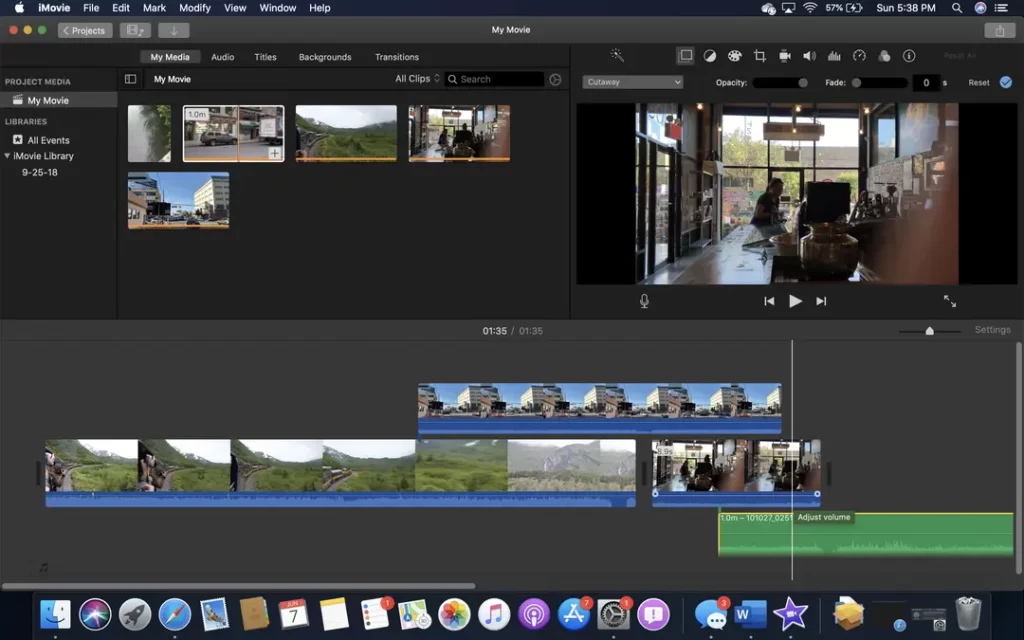
As Apple’s consumer-focused video editing software, iMovie is designed to introduce even the most tech-averse creators to basic editing techniques. The simple interface prioritises usability over features, making iMovie easy to recommend for beginners getting started on Mac or iPhone/iPad. Highlights include:
- Streamlined editing features
- Stylish built-in themes and templates
- Smooth integration with other Apple apps
- Direct video/audio importing from iOS devices
- Optimised performance for MacBooks and iMacs
Although advanced editors may find it constraining, iMovie is hands-down the easiest way for amateurs to combine video clips and photos into polished movies on Apple devices. And you can’t beat the price—it’s free with every Mac!
Key Stats:
- Added 80 new soundtracks in the latest update
- Exports videos up to 4K resolution
- It supports all popular image, audio, and video formats.
4. CapCut (Desktop, Mac, Win)
Right, let’s be honest. You’ve seen CapCut everywhere on TikTok and Reels. Its mobile app is a monster, but the thing is, their desktop version is a proper powerhouse for beginners, and it’s completely free. It’s been built from the ground up for creating short, snappy social media content that looks the business.
If you’re looking for an editor that lets you jump straight in and produce something that looks trendy and professional in minutes, this is it. The whole experience is geared towards speed. Some of the features that make it a winner for newcomers include:
- A dead-simple drag-and-drop interface that won’t give you a headache.
- A massive, constantly updated library of trendy templates, effects, and licensed music. No more faffing about with copyright claims.
- AI tools that do the heavy lifting: auto-captions that are surprisingly accurate, one-click background removal, and text-to-speech that doesn’t sound like a robot from the 90s.
- Endless tutorials online from the huge community, so you’re never stuck for inspiration.
Look, if your main goal is banging out videos for social media and you want them to look sharp without a massive learning curve, CapCut is your best bet. It strips away all the complexity and focuses purely on getting great-looking content out the door, fast.
Key Stats:
- Built-in library of thousands of trending sounds and effects.
- One-click auto-captioning is available in numerous languages.
- Direct export options to TikTok and YouTube to streamline your workflow.
- Supports up to 4K resolution exports with customisable frame rates.
My top recommendations for introductory video editing software are Filmora, VSDC, and iMovie. They cater to beginners with an intuitive interface, a range of effects, and easy exporting. Read on for intermediate recommendations.
Best for Aspiring YouTube & Social Media Creators
Once you’ve gotten the basics of video editing, you may be looking to step up your game for YouTube, TikTok, Instagram and similar platforms. These versatile programs help take your videos to the next level.
5. Adobe Premiere Elements (Mac, Win)
As a particular version of Premiere Pro aimed at consumers and hobbyists, Adobe Premiere Elements offers an excellent middle ground between beginner and pro-level video editing. Compared to the standard Premiere Pro, Elements curates and simplifies features for home users, like
- Step-by-step video editor “Guided Edits”
- Simplified tools for correcting shakiness
- Audio and colour adjustment sliders
- Animated titles and motion graphics
- Easy sharing to social platforms
With plenty of bells and whistles to keep you busy without the complexity of pro software, Premiere Elements hits a sweet spot for YouTubers and social media creators looking to elevate production quality. And it remains intuitively designed for those without formal video editing training.
Key Stats:
- Added 27 Guided Edits in the latest version
- New auto-reframe feature for vertical videos
- Expanded animated titles & graphics options
6. VideoProc Vlogger (Mac, Win)
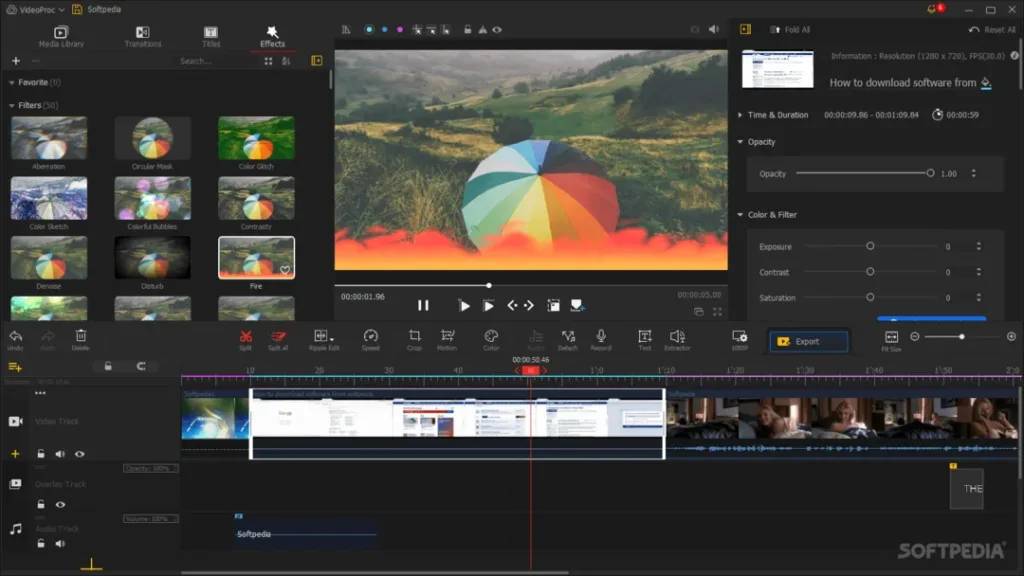
Designed specifically with digital content creators in mind, VideoProc Vlogger stands out with a streamlined toolkit for editing footage from cameras, smartphones and screen recordings. As the name suggests, it’s ideal for today’s vloggers and influencers looking to quickly edit content for YouTube, Instagram, and other platforms. Key features include
- Multi-track timeline editing
- Hundreds of filters, transitions, and elements
- Hardware-accelerated 4K editing
- Tools to remove background noise
- Direct publishing to YouTube.
With everything tailored to optimising social video production, VideoProc Vlogger removes much of the complexity from the editing process. The intuitive interface enables you to create engaging videos faster than traditional software. If creating YouTube or internet videos is your primary goal, put VideoProc Vlogger at the top of your list!
Key Stats:
- 400+ special vlogging effects and elements
- Enhanced audio mixer with volume control
- Custom tagging for organising media clips
- Exports videos with no watermark
7. PowerDirector 365 (Win)
Another competent intermediate program, PowerDirector 365, offers a one-stop solution for users seeking to publish high-quality videos online without diving into professional software. Useful capabilities include:
- MultiCam Capture Lite records from multiple devices
- 600+ unique title effects for text
- AI Style Plugins instantly change the video’s look
- Background removal and green screen editing
- Integrated action camera centre supports GoPro footage
PowerDirector hits a nice sweet spot for social video creators who find iMovie too essential but don’t need every bell and whistle. You get tons of effects and customizability without being overwhelmed. One caveat is that it’s only available for Windows.
Key Stats:
- Added over 200 new effects in v20
- Supports 18:9 & widescreen vertical video
- MultiCam Capture Lite supports 4+ devices
- Customisable keyboard shortcuts
8. Clipchamp (Win, Browser)
So, Microsoft threw its hat in the ring with Clipchamp, and honestly, it’s not half bad. It’s primarily a browser-based editor, so you can use it anywhere, but there’s also a dedicated app for Windows users. Think of it as a tool for people who just need to get a smart-looking video finished, like, yesterday. It’s perfect for small businesses, marketers, or anyone creating simple tutorials and ads.
Its strength lies in its simplicity and the templates it offers. You don’t need extensive editing knowledge to achieve a good result. Some of the helpful bits are:
- A huge library of stock videos, audio tracks, and images. This alone can save you a small fortune on asset subscriptions.
- A straightforward, template-driven workflow. You just pick a design you like, swap your bits in, and the job’s a good ‘un.
- The brand kit feature is a lifesaver. You set your brand’s colours, fonts, and logos once, and every video you make has the right look and feel without manual fiddling. A proper time-saver.
- AI tools are there to help, including a decent text-to-speech generator and an auto-compose feature that can build a draft video for you from your files.
If you’re finding traditional editors a bit much and just want something that helps you produce polished videos quickly, give Clipchamp a look. It’s designed for efficiency and results, not for winning filmmaking awards.
Key Stats:
- Access to over 1 million stock assets with the paid plan.
- The free plan includes watermark-free exports at resolutions up to 1080p.
- Direct integration with Microsoft 365 and cloud storage services, such as OneDrive.
- Includes simple tools like screen recording and webcam capture.
I recommend Premiere Elements, VideoProc Vlogger, or PowerDirector 365 if you’re ready to expand beyond entry-level software and create high-quality videos for YouTube, TikTok, or other social platforms. However, you may still desire even more advanced tools…
Professional Video Editing Software
Once you’re ready to enter the world of professional filmmaking and broadcast video production, you need software to handle anything you throw at it. These industry leaders provide top-notch tools for Hollywood blockbusters and beyond.
9. Adobe Premiere Pro (Mac, Win)
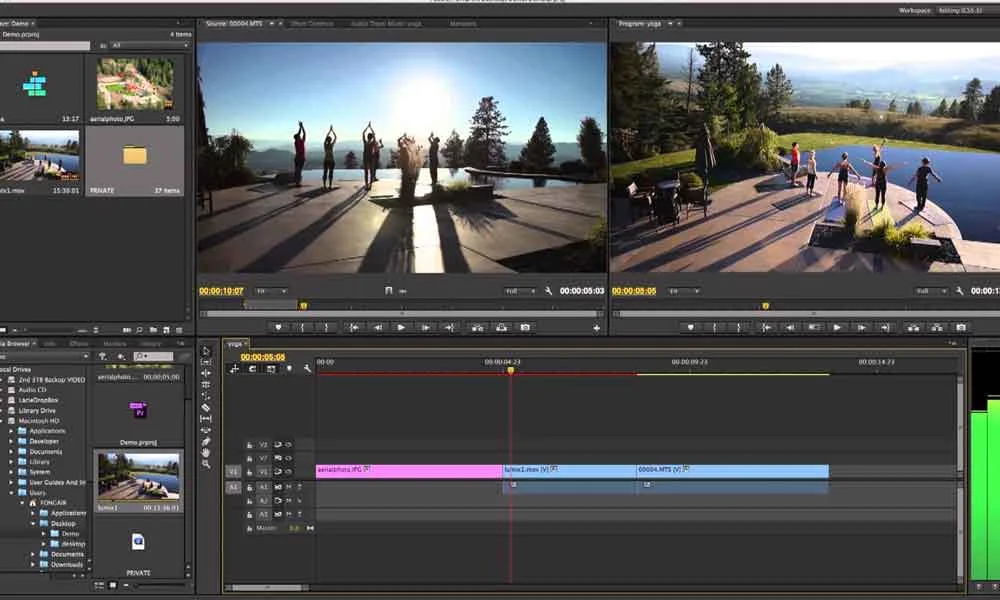
If you’re working in professional video editing or filmmaking, Adobe Premiere Pro remains an industry-standard option trusted by video professionals worldwide. Some highlights that make it a go-to choice include
- Integration with other Adobe software, like After Effects
- Collaborative workflows and cloud integration
- Advanced colour grading and audio mixing options
- Extensive hardware and codec support
- Tools for VR video, animatics and more.
Think of any high-profile movie or show with dazzling editing and effects—possibly Adobe Premiere Pro was involved. Although the learning curve is steep, Premiere can handle even the most demanding editing workloads once mastered. Just be prepared to pay monthly, as it’s only available via Creative Cloud subscription plans.
Key Stats:
- Over 275 file formats/codecs supported
- Real-time collaborative workflows
- Enhanced tools for immersive content
- Over 15 plugins for captions & subtitles
- Over 45 plugins to expand functionality
10. DaVinci Resolve Studio (Mac, Win, Linux)
Created for colour grading and correction, DaVinci Resolve has evolved into a competent editing program in its own right. Some of the high-end finishing tools that make it popular with professionals include:
- Facial recognition and isolated editing
- Resolution up to 8K with real-time effects
- High dynamic range colour support
- Neural engine and multi-user collaboration
- Fairlight digital audio workstation:
- Full-blown audio post-production with Fairlight. Thing is, this isn’t just some basic audio editor bolted on as an afterthought. It’s a complete digital audio workstation built right inside Resolve. This means you can do your dialogue editing, sound design, mixing, and mastering without ever leaving the programme. It features a massive library of sound effects, tools for automatic dialogue replacement (ADR), and even supports advanced features like Dolby Atmos. They even sell their own hardware, like mixing desks, that plug straight in. It’s a huge reason why so many pros see Resolve as the complete all-in-one package.
If your work involves colour grading, audio engineering, or editing high-resolution/high-dynamic range video, DaVinci and Premiere should be on your list. And with a permanent license fee, some may prefer its pricing model over Adobe’s subscription plans. Just know there’s a learning curve to harness its immense toolset.
Key Stats:
- Used on over 1000 feature films per year
- Supports frame sizes up to 8K resolution
- Advanced filters use facial tracking for precision
- Collaborative workflow across 30+ systems
- Immersive 3D audio mixing with Dolby Atmos support
11. AVID Media Composer (Mac, Win)
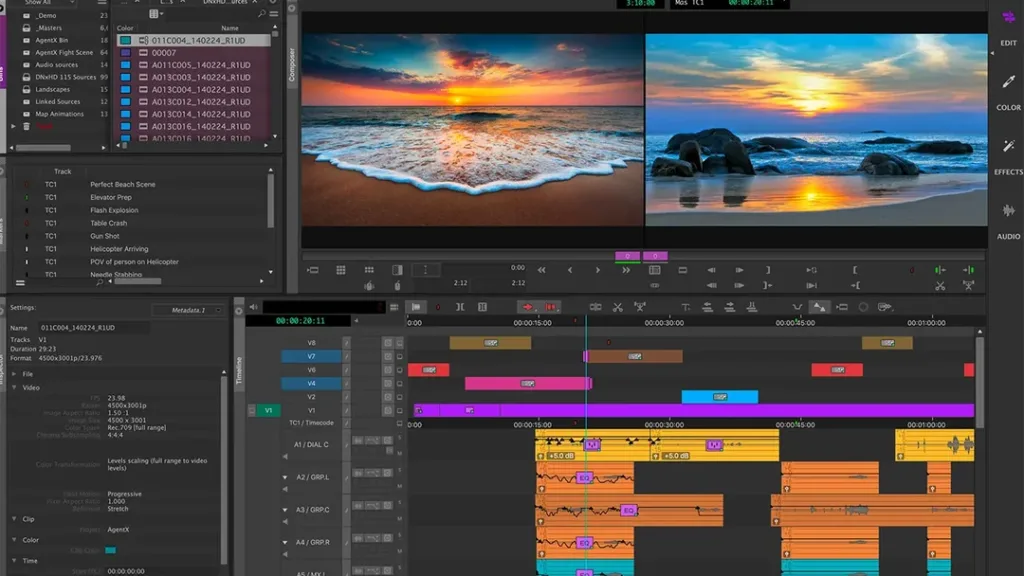
Used by many professional editors in film and television, Media Composer by Avid focuses solely on non-linear editing. By specialising in multi-camera editorial workflows, collaborating with large teams, and being compatible with industry technology, Media Composer is built for serious post-production. Standouts include:
- Collaborative editing with Avid Nexis storage
- Optimised for editing using multiple cameras
- Interplay integration for reviewing footage
- Supports HDR, 4K, UHD media and beyond
- Highly customisable keyboard shortcuts
So, while Avid can’t match Premiere’s breadth of features, Media Composer provides best-in-class media organisation and timeline editing tools trusted by old Hollywood and major networks. If you work in film or TV editing, its capabilities with team workflows should put Avid on your radar, along with Adobe and DaVinci.
Key Stats:
- Trusted by over 75% of films edited in Hollywood
- Over 200 production companies use Avid Nexis
- Real-time collaboration with remote editors
- Over 200 import/export plug-ins are available
- Customise virtually any command or tool
12. Final Cut Pro (Mac)
Right, if you’re serious about video editing and live and breathe Apple, then Final Cut Pro is a no-brainer. It is built from the ground up to run exclusively on Macs, and it absolutely flies on the new machines with the M-series chips. The speed is just ridiculous compared to some cross-platform programmes.
It marches to the beat of its own drum with its workflow, which some editors love, and others don’t. But once you get it, it’s hard to go back. Highlights that make it a pro favourite include:
- The Magnetic Timeline is a genuine game-changer. It automatically shuffles clips to avoid gaps and collisions. It takes a minute to get used to, but it makes rearranging your edit so much faster.
- Blistering performance on Apple Silicon. Rendering, effects, and exporting are all lightning quick, meaning less time staring at progress bars.
- Powerful, built-in colour grading tools. You can achieve a really professional, cinematic look without having to round-trip to another bit of software.
- Flawless integration with other Apple Pro apps, like Motion for motion graphics and Compressor for creating specialised export files.
And here’s the kicker: you buy it once, and it’s yours forever. No monthly subscription draining your bank account. The updates have been pretty generous over the years, too. It’s a beast for professional creators in the Apple world who want a smooth workflow that lets them focus on the creative side of things.
Key Stats:
- Fully optimised for Apple Silicon, delivering up to 5x faster performance on complex projects.
- Object Tracker uses machine learning to automatically match text and effects to moving faces or objects.
- Supports multi-camera editing for syncing up to 64 different camera angles.
- Edit Cinematic Mode footage shot on modern iPhones, with control over focus points.
For the highest-end projects where time is money, these three professional options have the horsepower and pedigree demanded by video editors, colourists and engineers alike. Their tool sets cater to everyone from indie filmmakers to industry veterans.
Most Unique & Innovative Options
Beyond the most popular software, amateurs and professionals who use some wildcard programs are thinking outside the box. These options provide unique capabilities or workflows compared to traditional non-linear editing tools.
13. Lightworks (Win, Mac, Linux)
As the only free program with a genuinely professional-grade editor, Lightworks makes the list for its innovative business model. Unlike other free software, Lightworks has a proven track record of use in major films like Pulp Fiction, LA Confidential, Heat and more. Some critical aspects beyond price include:
- Used to edit films that won 3 Academy Awards
- Compatible with SD, HD, and 4K formats
- Real-time effects with background rendering
- Tools for stereoscopic 3D editing
- Content and codec expansion packs are available
Despite being free and open source, Lightworks still delivers capabilities that are on par with those of paid competitors. The caveat is that export options are limited unless you purchase the $25/month Pro version. But it remains a competent editor available at no cost.
Key Stats:
- Exports videos in up to 4K resolution
- Compatible with a wide variety of video formats
- Over 400 customisable keyboard shortcuts
- Used to edit content for NBC, ABC, BBC and more
14. Shotcut (Win, Mac, Linux)
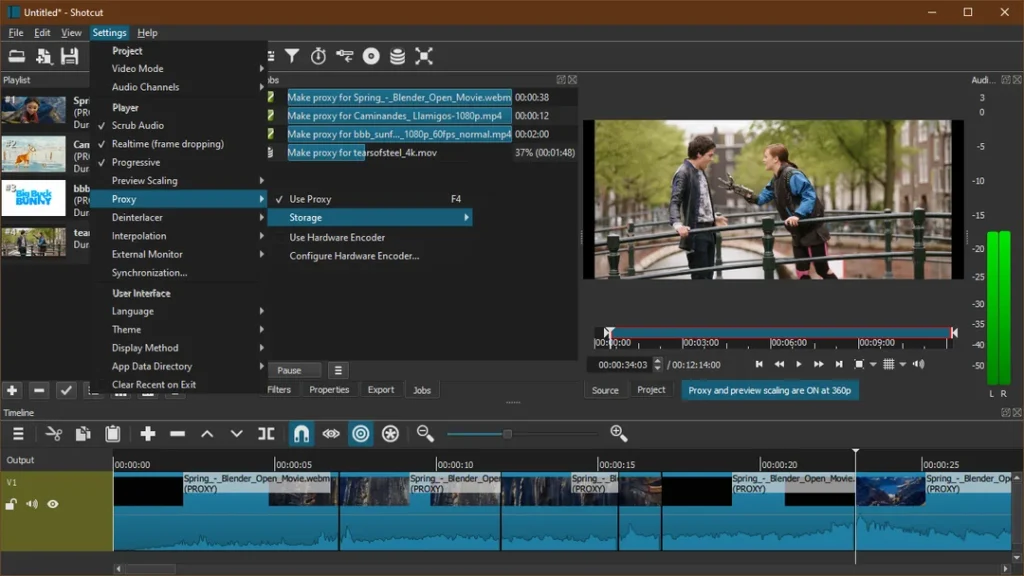
Like Lightworks, Shotcut is another open-source video editor that is entirely free. Considering there’s no price tag, it manages to pack an incredible amount of functionality into a sleek interface. Useful features include:
- Support for hundreds of audio & video formats
- Powerful waveform and histogram analytics
- Highly customisable interface layouts
- Master filter for applying effects to any clip
- Real-time previews for filters & transitions
For freeware, Shotcut exceeds its weight class. The open-source platform allows for the rapid development of new features and add-ons. And supporting 4K YouTube uploads plus FFmpeg integration should satisfy non-professionals and moderately advanced editors alike. Try Shotcut if you want a capable free software.
Key Stats:
- Supports unlimited audio sound effects, video, and filter tracks
- Added 12 new filters & 58 improvements in v22.01
- GPU-optimised playback performance
- Custom encoding presets for over 40 formats
- Advanced colour correction tools
15. DaVinci Resolve Fusion (Mac, Win, Linux)
As mentioned earlier, DaVinci Resolve Studio is aimed squarely at serious post-production with advanced colour grading, editing, audio, and the Fusion compositing toolset. Even in the basic Free version, editors get access to Fusion’s 2D and 3D compositing workflow and hundreds of effects. Key traits that set Fusion apart include:
- Node-based visual workflow
- 2D/3D compositing in real-time
- Paint and rotoscope tools
- 3D particles, objects and cameras
- GPU/CPU-accelerated rendering
By baking this compositing software right into Resolve, editors gain a host of animation, particles, tracking and other motion graphics capabilities typically requiring a separate program. Under one roof, this Swiss army knife of post-production tools provides serious value to Resolve users.
Key Stats:
- Over 250 built-in tools for compositing
- Support for industry-standard formats like EXR
- Added the Neon Creator node generates realistic neon
- The new Camera Shake node animates camera moves
- Dynamic Media Folders automatically organise assets
While not traditional non-linear video editors, Lightworks and Shotcut provide competent tools, considering their free price and open-source status. DaVinci Resolve earns a spot for putting advanced compositing into every editor’s toolkit alongside editorial, colour, audio and more.
16. Blackmagic DaVinci Resolve 17
DaVinci Resolve 17 is a comprehensive video editing suite renowned for its professional-grade capabilities, utilised by many in the film industry. This software amalgamates several high-end tools—from video editing and sound mixing to special effects and colour grading—all within a single platform.
Professional Tools
- Advanced Colour Correction:
- The specialised grading control panels achieve precise colour adjustments, which are essential for professional-grade projects.
- DaVinci Neural Engine:
- Harness the power of AI for tools like facial recognition and speed warp to enhance footage seamlessly.
- Collaboration Features:
- Benefit from real-time collaboration tools, allowing multiple users to work on the same project effortlessly.
- Multi-Camera Editing:
- The software’s multi-camera tools enable the capture and merging of multiple perspectives, streamlining complex edits.
- Audio & Visual Effects:
- Integrate dynamic audio editing with Fairlight tools and explore various effects through built-in ResolveFX and FairlightFX plug-ins.
- 3D Tools & HDR Grading:
- For more advanced projects, use stereoscopic 3D tools and HDR grading to create engaging visual content.
Strengths
- Comprehensive Free Version: Offers a robust feature set even in its complimentary version, making it accessible to semi-professionals.
- Cross-Platform Compatibility: Smooth operation across macOS, Linux, and Windows, with an easy workflow transition to other software like Final Cut and Adobe Premiere Pro.
- Integrated Work Environment: Combines multiple editing capabilities, allowing users to perform various tasks without leaving the application.
Weaknesses
- Steep Learning Curve: New users may find the extensive features overwhelming, necessitating a longer learning period.
- High System Requirements: Demands significant RAM and storage space, making high-performance hardware necessary.
- Complex User Interface: Although feature-rich, the interface can be daunting, and navigating its many toolbars requires some acclimatisation.
DaVinci Resolve 17 is a powerhouse for those serious about video production. It focuses on colour correction and sound integration, providing intelligent tools for high-level editing tasks. However, users must be prepared to invest time in learning its intricacies and ensuring their systems can handle its demands.
17. Freepik AI Video Editor

Freepik AI Video Editor is a powerful and user-friendly online tool that lets anyone produce professional-quality videos in minutes. It blends speed and flexibility, offering full creative control without complexity.
- Arrange your own clips or AI-generated ones
- Add text, images, music, overlays, and effects
- Crop, flip, trim, and resize for perfect framing
- Animate elements and adjust aspect ratios instantly
- Seamless timeline-based editing experience
The Freepik AI Video Editor is completely free to use. No subscriptions, no hidden fees, and no watermarks—just professional video editing at your fingertips.
Key Stats:
- Timeline-based editor with pro-level tools
- Supports 16:9, 1:1, 9:16 and more formats
- Integrates within the Freepik AI Suite, including the AI Video Generator
- Zero watermarks on all exported videos
- Ideal for ads, tutorials, and social content
Video Editing Software Comparison Tables
Still trying to figure out where to get started? Here are some quick reference tables I put together comparing key stats, features and pricing across various video editing programs.
Beginner & Entry-Level Software
| Software | Platform | Max Project Resolution | Notable Features | Price |
| Filmora | Windows/Mac | 4K UHD | 740 effects/elements, easy drag & drop | $7.99/month |
| VSDC | Windows | Ultra HD 4K | Hardware acceleration, 50+ filters | FREE |
| iMovie | Mac/iOS | 4K | Stylish Apple templates, easy sharing | FREE (Mac only) |
Intermediate Options for Online Creators
| Software | Platform | Max Hardware Inputs | Effects & Elements | Price |
| Premiere Elements | Windows/Mac | 4 Cameras | Guided edits, auto-reframe for vertical | $99 one-time |
| VideoProc Vlogger | Windows/Mac | 5 Tracks | 400+ vlogging-focused | $78 one-time |
| PowerDirector 365 | Windows | 5+ Cameras | 600+ title effects, 200+ filters | $69 one-time OR $99/year |
Professional & High-End Software
| Software | Real-time Collaboration | 3D/VR Tools | Sample Users | Price |
| Premiere Pro | Yes, Productions | Immersive Video Plugins | Apple, BBC, Netflix | $239/year |
| DaVinci Resolve Studio | Yes, across 30+ systems | Compositing, 3D Particle Systems | Warner Bros, Universal, Paramount | $445 one-time |
| Avid Media Composer | Yes, Avid Nexis | Some VR Capabilities | NBC, ABC, SkyTV, Sony Pictures | $1,299 one-time OR $699/year |
Most Unique & Innovative Options
| Software | Open Source | 4K Export | Sample Films Edited | Price |
| Lightworks | Sort of | Yes with Pro | Pulp Fiction, Heat, LA Confidential | FREE or $25/month Pro |
| Shotcut | Yes | Yes | N/A | FREE |
| DaVinci Resolve Fusion | No | Yes | Featured in Resolve Studio | Included FREE in Resolve |
I hope breaking down the contenders into beginner, intermediate, prosumer and professional categories helps narrow your search. As you can see, there are excellent options at every price point and experience level.
Supported Video Formats for Various Video Editing Software
When choosing the right video editing software, understanding which video formats are supported is crucial to ensure compatibility and optimise workflow. Below, we explore the various video formats supported by different popular editing programs.
Adobe Premiere Pro
Adobe Premiere Pro is known for its versatility and extensive format support. It includes a wide array of both standard and professional formats, such as:
- Standard Formats: MP4, AVI, MOV, and MPEG.
- Professional Formats: Apple ProRes, ProRes RAW, DNxHD, DNxHR.
- Others: H.264 AVC, HEVC (H.265), and Red R3D.
Adobe Premiere Elements
Adobe Premiere Elements is user-friendly and ideal for day-to-day editing tasks. It supports formats such as:
- Standard Formats: MP4, AVI, and QuickTime.
- Others: HEVC, AVCHD, MOD, and MPEG-4 for export.
Apple Final Cut Pro
This software is optimised for Mac users and is popular among professional editors. Supported formats encompass:
- Proprietary and Professional Formats: Apple ProRes (all versions), ProRes RAW, and REDCODE RAW.
- Standard Formats: MP4, MOV, and AVI.
- Others: HEVC, Canon Cinema RAW Light, and XAVC.
Wondershare Filmora
Wondershare Filmora caters to both beginners and intermediate users with an array of supported formats like:
- Standard Formats: MP4, AVI, and MOV.
- Others: MOD, TOD, FLV, and WEBM for specific use cases.
Each software provides different levels of format support tailored to specific editing needs and workflows. Selecting the right program depends on the formats you frequently work with and your editing requirements.
Read on for a quick FAQ addressing common questions about selecting your software!
Frequently Asked Questions
Still evaluating the many excellent video editing programs available in 2026? Here are answers to a few of the most frequently asked questions:
Should I pay monthly or buy a program outright?
Whether you rent the software on a monthly basis or purchase it as a one-time payment depends on your budget and usage requirements. Adobe and others now focus on subscription plans, while options like CyberLink PowerDirector sell outright licenses that never expire. If you only edit occasionally, purchasing a program outright avoids paying when you aren’t using it. However, subscriptions make sense if you frequently edit and always want to access the latest updates. They lower barriers to getting started and can sometimes be cheaper in the short term. Ultimately, it comes down to your financial situation and the frequency of video editing.
How much does professional video editing software cost?
Professional video editing programs range from approximately $250 to $700 per year for a subscription. One-time purchase options can run from $300 to $1,300 or more. Free software lacks capabilities for high-end work. For example, an annual Adobe Premiere Pro subscription costs $239. DaVinci Resolve Studio has a one-time cost of $445. Avid Media Composer requires a $699 annual plan or a one-time purchase of $1,299. So you’re looking at a yearly fee in the hundreds for professional tools.
Can I edit a 4K or 8K video?
Most modern video software supports editing 4K resolution footage without issue. However, editing higher-resolution 8K video remains less common among consumer programs—DaVinci Resolve and Adobe Premiere Pro are prime examples that support 8K and require unique hardware. You’ll want a more advanced editor when working in these ultra-high resolutions.
How much hard drive space do I need?
Video files consume vast amounts of drive space compared to other media. Aim for at least 500GB of free space as a baseline when managing multiple video projects. 4K footage, in particular, can quickly monopolise terabytes of HDD or SSD storage. Investing in a fast primary drive (like a 500GB+ SSD) for active editing and larger secondary HDDs (2+ TB) for completed archives is recommended. Additional external drives help, too. Video editing pushes storage needs to the limits!
What computer specs are ideal?
When selecting hardware, prioritise maximum CPU cores and higher base clock speeds for smooth video previewing and export. Discrete GPUs also accelerate rendering and effects. 32GB+ RAM provides breathing room for editing HD and 4K footage. The aim is for newer processors with 6 or more cores, such as Intel i7/i9 or Ryzen 7/9. Pair it with 32GB+ RAM, 500GB+ SSD storage, and dedicated Nvidia/AMD graphics cards for the ultimate experience. Powerful PCs translate to smooth editing!
Ready to Get Editing?
I hope this comprehensive guide to finding the best video editing software options in 2026 helps you select the right program for your needs and experience level!
The key is matching your goals and budget to tools that won’t provide unnecessary complexity while enabling you to achieve the editing capabilities you desire now or in the future.
Whether you picked up some new ideas while browsing beginner, intermediate, or professional-grade solutions, let me know if you have any other questions! I’m always happy to chat more about optimising your video editing workflow and setup.
Now, pick your platform of choice and dive into editing captivating videos—I can’t wait to see what you create!