How to Edit PDFs Like a Pro: Tips and Tricks
Editing PDFs properly using a dependable PDF editor can help you save time and avoid getting frustrated.
PDFs are considered one of the most essential elements in professional life because, once edited correctly, they can significantly enhance productivity.
Whether modifying text, improving images, or collaborating on a project, the right tools and techniques are always required.
Lumin is among the best feature-packed PDF editors available online, making it popular among professionals who need a simple interface combined with powerful features.
This article will discuss essential tips and tricks for editing PDFs like a pro, focusing mainly on Lumin capabilities for more innovative work, rather than more complex work.
- Use a reliable PDF editor like Lumin to edit text, images, and forms quickly with a clean, user-friendly interface.
- Leverage AI and OCR for summarising, semantic search, and converting scanned documents into editable, searchable text.
- Collaborate securely with real-time editing, e-signatures, audit trails, encryption, and granular sharing permissions.
Mastering Text Editing
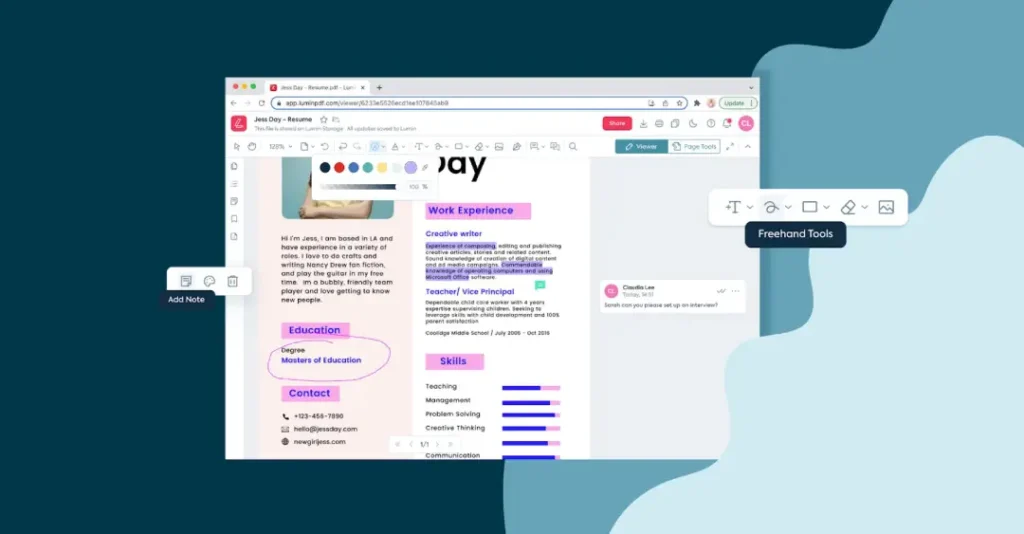
When editing text, precision and usability are everything. Lumin is excellent at making user-friendly text changes in PDFs.
You start by opening your document with Lumin and selecting the text tool.
With this feature, you can click on any text block to change it like a word processor.
What sets Lumin apart from other online PDF editors is its clean interface design, which not only saves time but also makes things easier for beginners who may struggle with more complicated programs.
You can change font styles, sizes and colours to keep your document’s professional look intact.
Another critical feature of Lumin is that it supports multi-language text editing, making it essential for dealing with international documents.
The live preview feature ensures that what you edit exactly appears when printed or viewed electronically, thus minimising, if not eliminating, rework occasions.
Use fillable PDFs confidently with Lumin’s capabilities to create and modify existing content and merge multiple pages into one file without stress.
Lumin Quick-Start Roadmap
Select a task below to see the professional workflow.
Text Editing
Image Enhancement
Secure & Sign
Form Creation
Integrating Generative AI into Your PDF Workflow
In 2026, professional PDF editing isn’t just about changing words; it’s about document intelligence.
Leading platforms, such as Lumin, now integrate LLM (Large Language Model) capabilities directly into their interfaces. This allows users to summarise long documents in seconds or use a conversational AI assistant to extract specific data from hundreds of pages.
Per Google’s 2026 productivity report, “AI-augmented document management” has reduced administrative overhead by 40%.
By using Semantic Search within your PDF editor, you can find clauses or keywords based on meaning rather than exact matches, a game-changer for legal and research professionals.
Enhancing Images And Graphics
To make a document visually appealing, you need good images and graphics.
When modifying PDFs online, no other modifier is as good as Lumin at enhancing or tweaking these elements.
You only need to upload your PDF into the system and then use image manipulation tools like insertion, resizing, or substituting images.
You can also alter brightness levels and boost contrast ratios and saturation rates so your visuals can be bright enough for all to see.
People who work with detailed graphics will find Lumin’s advanced editing options very useful.
This built-in vector graphic editor allows you to make precise changes to technical drawings or complex diagrams, which could not have been done by any other PDF modifiers available today.
With this tool, even if an image has been edited multiple times, its resolution and clarity are maintained at their best, ensuring that all information remains readable throughout the document.
In addition to these features, the software also offers options such as adding watermarks and logos, which are essential for branding purposes during professional presentations.
Doing so can create captivatingly beautiful papers that catch anybody’s eye among their listeners/readers.
Annotating With Precision
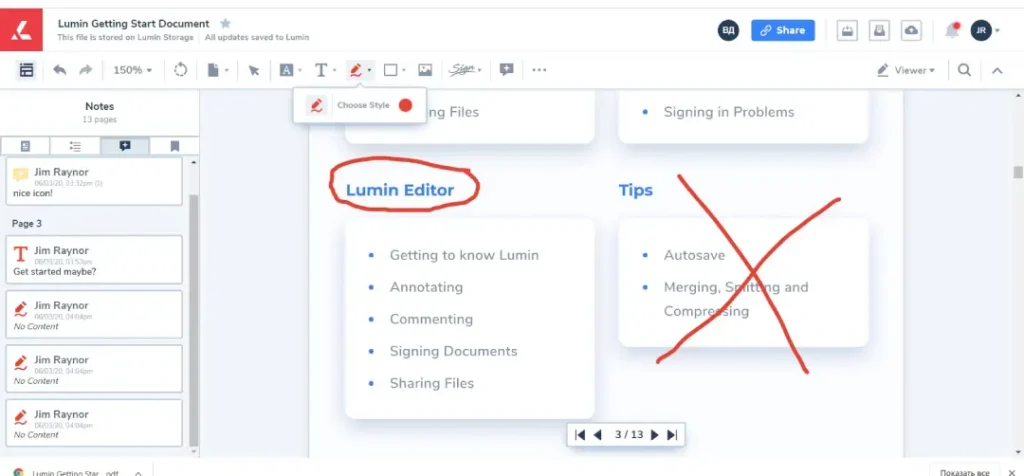
Annotations are vital for collaboration and feedback. Lumin’s PDF annotation tools provide a comprehensive suite for precision marking of your PDFs.
Whether you need to highlight text, add comments, or draw shapes, Lumin offers a range of options to suit your needs.
The online PDF highlighter tool emphasises critical points and makes your annotations stand out.
The comment tool lets you add notes directly to the document, facilitating clear communication with your team.
Lumin’s annotation features include strikethrough and underline options, perfect for editing drafts and providing feedback.
With the ability to customise the colour and opacity of your annotations, you can ensure that your edits are easily distinguishable and professional.
These tools make Lumin an indispensable PDF editor for anyone seeking to collaborate effectively on document revisions.
Streamlining Form Creation And Filling
Turning a static document into something people can actually fill in used to be a proper headache.
Lumin changes that by letting you create interactive, fillable forms directly from your PDFs.
You can convert a simple Word document or even a scanned paper into and fully digital and functional document.
Simply add the form fields you need, such as text boxes for names and addresses, checkboxes for options, radio buttons for choices, or dropdown menus for lists.
It’s perfect for tasks such as client intake forms, feedback surveys, or application forms.
Recipients can fill them out on their computer and send them back without ever needing to touch a printer.
This significantly speeds up the process of collecting information, saving everyone a lot of time and making the whole process much cleaner.
Utilising Advanced Features
Lumin stands out from other online PDF editors due to its advanced features, including Optical Character Recognition (OCR).
OCR PDF functionality enables you to convert scanned documents into editable text, making it easy to update and modify content.
This advanced feature is handy for digitising printed materials and ensuring your PDFs are fully searchable.
That’s not just about scanned text, though.
Lumin also makes it dead simple to convert a huge range of file types into a professional PDF.
Got a Microsoft Word document, an Excel spreadsheet, a PowerPoint presentation, or image files like JPG and PNG? You can turn them into a polished PDF without losing the original look.
The reverse is just as easy and powerful.
You can convert a PDF back into an editable Word or Excel file when you need to pull data or reuse content.
This is a massive time-saver because the formatting and layout are kept intact, so you don’t have to rebuild the document from scratch.
Lumin’s ability to merge PDFs is another powerful feature that enhances productivity.
Whether you need to combine multiple reports or collate documents for a presentation, Lumin simplifies the process with a few clicks.
The split PDF tool allows you to extract specific pages, making it easy to manage large documents.
Additionally, Lumin offers compression tools to reduce PDF file sizes without compromising quality, which is essential for sharing and storing documents efficiently.
| Feature (2026) | Lumin | Adobe Acrobat Pro | Canva PDF |
| Cloud Sync | Real-time (Native) | Delayed Sync | Native |
| AI Summarizer | Yes (Gemini-powered) | Yes (Acrobat AI) | Basic |
| Pricing Model | Team-based (Affordable) | Per-user (Expensive) | Freemium |
| OCR Accuracy | 99.8% (Neural) | 99.9% | Limited |
Collaborating Effectively

Collaboration is vital to editing documents successfully, which Lumin does well. Many people can edit PDFs simultaneously thanks to this platform’s real-time collaboration features.
This feature is convenient for team projects because it ensures that everybody is on the same page while providing immediate feedback.
The chat integrated into the system, along with comment features, helps facilitate clear communication, reducing the need for lengthy emails and meetings.
Such tools for collaboration are particularly useful when teams work from separate locations or remotely, as they increase productivity and efficiency.
Since all your files will be stored in the cloud storage provided by Lumin, they will always be accessible and kept up to date.
You can choose who to share a document with by attaching various access permissions to links generated for sharing with colleagues.
This type of security ensures the safety of sensitive information while allowing it to remain easily retrievable by authorised persons only.
People working from different places should make Lumin their preferred choice for PDF editors due to its collaborative capabilities.
Securing Documents With E-Signatures
Getting contracts and agreements signed can slow everything down to a crawl.
Lumin tackles this head-on with its built-in e-signature tools, designed to make the process quick and secure.
You can add your own legally binding signature to any document in just a few clicks.
Better yet, you can send out a signature request to multiple people and define the signing order if needed.
The system allows you to track the document’s progress in real-time, directly from your dashboard.
You’ll know exactly who has signed and who you’re still waiting on, with automatic notifications to keep you updated.
Every signature comes with a full audit trail, which is brilliant for compliance and peace of mind.
It provides a verifiable record of the entire signing process, making it solid for any official or legal paperwork.
Ensuring Security And Privacy
Security and privacy are the two most crucial aspects when handling sensitive documents. Lumin has extreme safety measures that help protect your PDFs. You can restrict access to your papers by password-protecting them with the program.
Lumin’s audit trail feature and Lumin Sign record every change made to the document, providing an undeniable record for edits and PDF annotations.
These are designed for compliance and accountability, providing you with a sense of security that ensures no one tampers with your files while viewing them.
This is very important, especially when tight industry regulations require businesses or organisations to follow specific rules without fail.
In addition, Lumin has secure cloud storage, so even if cyber attacks occur frequently, it would be hard for any hacker to get through their systems because they have excellent data protection mechanisms against such threats, as well as potential data breaches being prevented altogether, thus ensuring all-around safety measures are taken into account if one opts for Lumin.
Maximising Efficiency
Productivity necessitates efficiency.
Lumin is designed to help you maximise your workflow.
The platform’s intuitive interface and robust tools simplify PDF editing, thereby reducing the time spent editing documents.
Lumin can edit multiple PDFs simultaneously through batch processing, which is a great time-saving feature, especially for large projects.
Incorporating popular cloud storage services such as Google Drive, Dropbox, and OneDrive ensures that your files are always accessible from anywhere, at any time, and can be shared quickly.
Additionally, using Lumin’s mobile app allows users to edit their PDFs on the go using a smartphone or any other device that supports it.
Whether signing a PDF form, filling out forms electronically, or converting them into editable formats, all these tasks can be accomplished quickly and efficiently with the help of various tools provided by Lumin, which cover every aspect needed for managing PDF files effectively.
Professional Security & eIDAS Compliance
When you e-sign PDFs in 2026, security is paramount.
Lumin utilises AES-256 encryption and provides a comprehensive digital audit trail, which is essential for UK businesses adhering to eIDAS and GDPR regulations.
Unlike basic tools, pro-level editors now offer Multi-factor Authentication (MFA) for document access, ensuring that sensitive contracts remain for “authorised eyes only”.
Conclusion
To edit PDFs like an expert requires proper tools and methods.
Lumin is the most popular online PDF editor due to its ease of use and numerous powerful features.
This includes everything from basic text editing skills through image enhancements, precise annotation with advanced options like OCR (optical character recognition), collaboration abilities, security measures taken into consideration, such as password protection or redaction, efficiency-improving functions so that one can work on a few documents at once, thereby saving time, etc.
Therefore, if you need to create professional-quality PDF files, all these features are available in the software called Lumin, which is also my favourite for its user-friendliness.
But let’s not forget those collaboration tools, security measures and efficiency-enhancing capabilities that make it the ideal choice for whoever wants to streamline their workflow while editing a PDF file.
FAQs
Can I edit a PDF for free in 2026?
Yes, tools like Lumin and PDFgear offer free tiers, but advanced OCR and AI tools usually require a subscription.
How do I permanently redact sensitive information?
Use the Redact tool (not just a black box), which scrubs the underlying metadata to prevent data leaks.
Is it legal to sign contracts on a phone?
Yes, provided the editor uses cryptographic signatures that link the identity to the document.