Top 10 Best Drawing Apps You Should Be Using
Ah, digital art. The canvas of the future – right here, right now.
The world of drawing apps has exploded in the last few years, with options ranging from free sketching tools for beginners to professional-grade software that rivals traditional mediums. Whether you’re doodling on your morning commute or creating commercial illustrations, having the right app can make all the difference.
I’ve spent the past three months testing over 30 drawing applications across iPads, Android tablets, and desktops. My studio is now full of styluses, tablets, and coffee mugs – but the research was worth it.
- Procreate remains the top pick for iPad artists, offering a refined brush engine, time-lapse, and collaborative real-time features.
- Adobe Fresco excels cross-platform, merging vector and raster tools with strong Adobe ecosystem integration and improved Android performance.
- Krita is the best free, open-source option for powerful brushes, animation, and advanced layer tools—ideal for budget-conscious creators.
- Clip Studio Paint is unmatched for comics and manga with specialised rulers, vector layers, and extensive asset library for production workflows.
Choosing Your Canvas: The Hardware-Software Handshake

Before you commit to a specific app, you must understand that your software is only as good as the hardware it’s running on. In 2026, the gap between Apple, Samsung, and Wacom has narrowed, but each offers a distinct “feel” that dictates which app you should use.
The iPad Ecosystem: Precision and Portability
The iPad Pro M4 remains the benchmark for digital illustration. With the introduction of the Apple Pencil Pro, features like “squeeze” to bring up tool palettes and “barrel roll” for brush orientation have been integrated deeply into Procreate and Adobe Fresco.
- Best for: Artists who value ultra-low latency and the most intuitive “pick up and play” experience.
- Key Tech: The Liquid Retina XDR display delivers colour accuracy essential for professional commissions.
The Android Renaissance: S Pen and Wacom Tech
If you prefer the Samsung Galaxy Tab S9 or the newer S10 series, you are using Wacom EMR (Electro-Magnetic Resonance) technology. Unlike the Apple Pencil, the S Pen never needs charging for drawing and offers a “softer” nib feel that many traditional artists find more natural.
- Best for: Users who want a desktop-like experience on a tablet and prefer the Clip Studio Paint or Infinite Painter workflows.
- Key Tech: Ray Tracing support in newer mobile chips now enables apps to render complex 3D scenes and lighting effects in real time.
The Desktop Powerhouse: Windows and macOS
For those using a Surface Pro 11 or a dedicated Wacom Cintiq display, your choice of app is often dictated by raw power. Here, Krita and Affinity Designer 2 shine because they can utilise the full RAM and CPU of a desktop environment.
- Best for: Professional concept artists, animators, and those working on massive 600 DPI canvases for print.
1. Procreate – Best Overall Drawing App
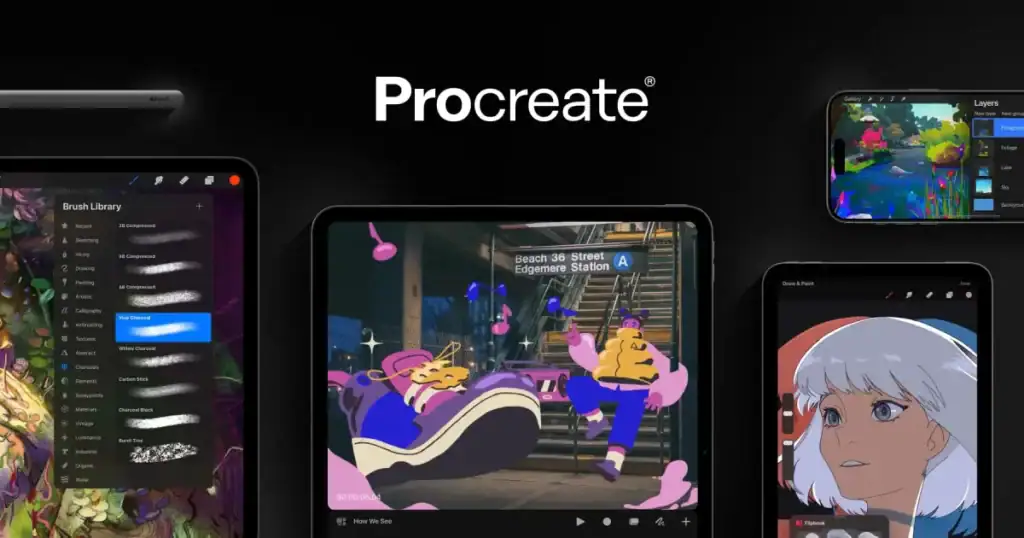
Procreate has long been the gold standard for iPad artists, and version 7 cements its position at the top. This powerhouse combines professional-grade features with an interface that remains accessible to newcomers.
Key Features:
- 3d model integration for reference
- Enhanced brush engine with over 200 customisable brushes
- Time-lapse recording of your entire process
- Advanced layer controls with adjustment layers
- Text tools that finally rival desktop applications
What’s New in 2026:
The latest update substantially improves the brush engine, allowing for more natural media simulation. The new particle brushes create stunningly realistic effects for watercolour and ink work. They’ve also added collaborative features that let multiple artists work on the same canvas in real time.
The Titan Tussle: Procreate vs Clip Studio Paint 2.0
In 2026, the question is no longer “which is better,” but “which fits your workflow.”
| Feature | Procreate 7 | Clip Studio Paint (v3.0+) |
| Primary Use | Illustration & Social Media | Manga, Webtoons & 2D Animation |
| Pricing Model | One-time purchase (£12.99) | Subscription (Mobile) / Perpetual (PC) |
| Vector Support | Limited (Text/Shapes only) | Advanced (Vector layers for line art) |
| Asset Store | Third-party (Gumroad/Etsy) | Massive official Asset Store (Tones, 3D) |
| 3D Integration | Model painting | 3D poses, backgrounds, and layout |
When to choose Procreate
Procreate is designed for the “Flow State.” Its interface is almost invisible, making it the best choice for sketching, painting, and creating content for platforms like Instagram or TikTok.
Its Time-lapse feature is still the industry standard for sharing your process. If your work is primarily raster-based (pixels) and you love a tactile, painterly feel, this is your home.
When to choose Clip Studio Paint (CSP)
CSP is a production powerhouse. If you are creating a comic or a webtoon, its specialised tools—like Perspective Rulers, Lasso Fill, and 3D mannequin posing—will save you hours of work.
Unlike Procreate, CSP allows for Vector Layers, meaning you can move and resize your line art without any loss in quality. It is the tool of choice for professional studios across Japan and Korea.
Best For:
Professional illustrators and serious hobbyists with iPads. If you’re using an iPad for art, this should be your first download.
2. Adobe Fresco – Best Cross-Platform Experience
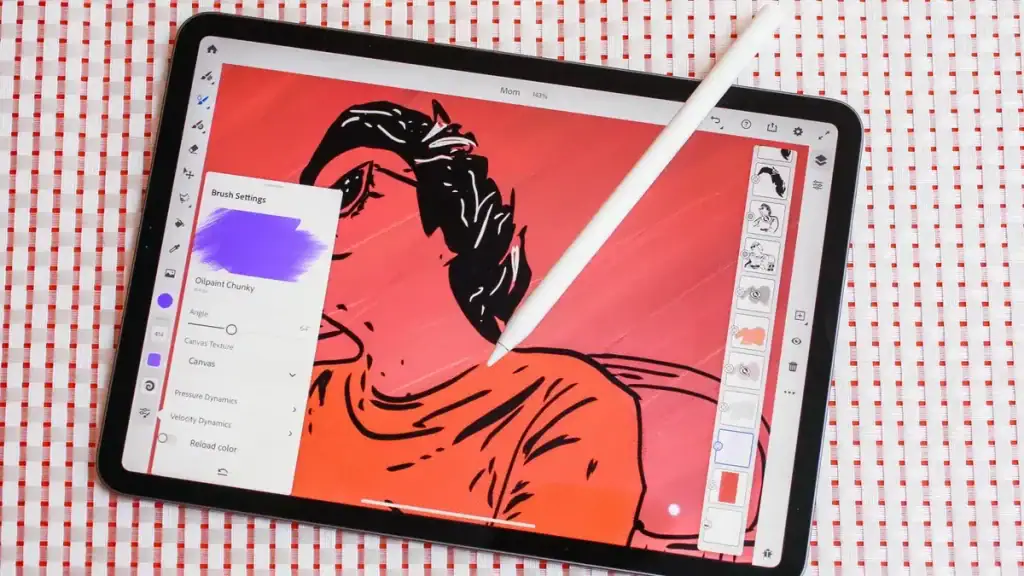
Adobe has finally delivered on the promise of a truly consistent cross-platform experience. Fresco works beautifully across iPad, Android, and desktop systems, seamlessly syncing your work.
Key Features:
- Live brushes that behave like real watercolour and oil paints
- Vector and raster capabilities in one app
- Seamless Integration with Photoshop and other Adobe products
- Extensive brush library, including Kyle T. Webster’s famous collections
What’s New in 2026:
The 2026 update brought significant performance improvements for Android tablets, finally making it a viable option across all major platforms. The new vector brushes are particularly impressive, offering natural-feeling drawing with the flexibility of vector editing.
Limitations:
Requires a Creative Cloud subscription for full functionality (though the basic version is free). Some users report occasional syncing hiccups between devices.
Best For:
Professionals who work across multiple devices or those already in the Adobe ecosystem. It’s particularly valuable if you regularly switch between iPad and desktop.
3. Krita – Best Free Drawing App
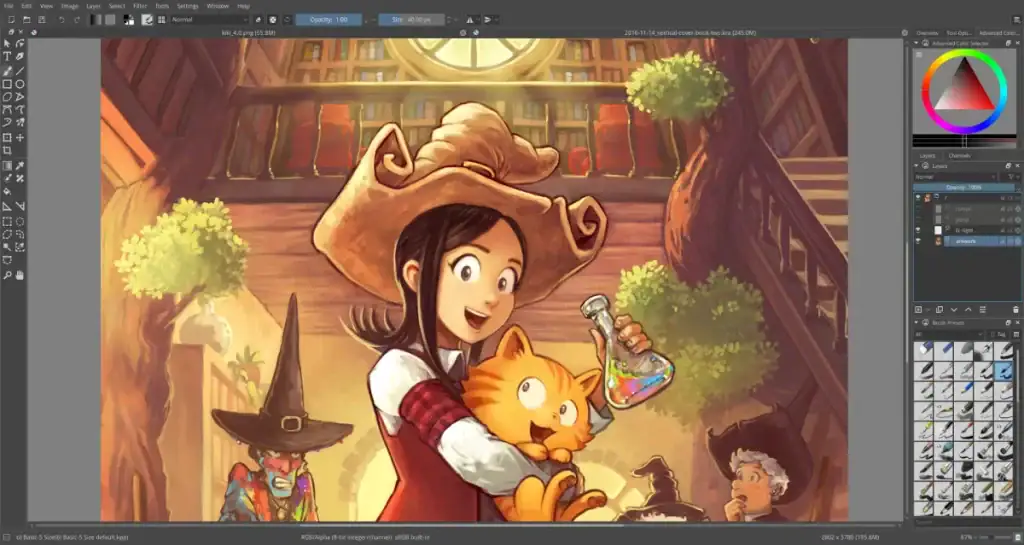
In a world of subscriptions and premium apps, Krita stands out as an excellent free, open-source option that rivals paid alternatives.
Key Features:
- Professional-level brush engine
- Animation capabilities
- Advanced layer management
- Resource manager for brushes and textures
- Supports both raster and vector artwork
What’s New in 2026:
The 2026 updates focused on optimisation, making Krita run smoothly even on lower-end devices. The new reference image tool is brilliant, allowing you to float multiple images around your workspace without cluttering your canvas.
Limitations:
While much improved, the mobile versions still don’t match the desktop experience. The interface has a steeper learning curve than some alternatives.
Best For:
Budget-conscious artists who primarily work on desktop or laptop computers. Students and hobbyists will find everything they need without spending a penny.
I’ve created several complete illustration projects using only Krita. No one could tell they weren’t done in a premium app. For a free tool, it’s mind-blowingly capable, which is why it earned a spot in our top graphic design tools roundup last year.
4. Concepts – Best Vector Drawing App
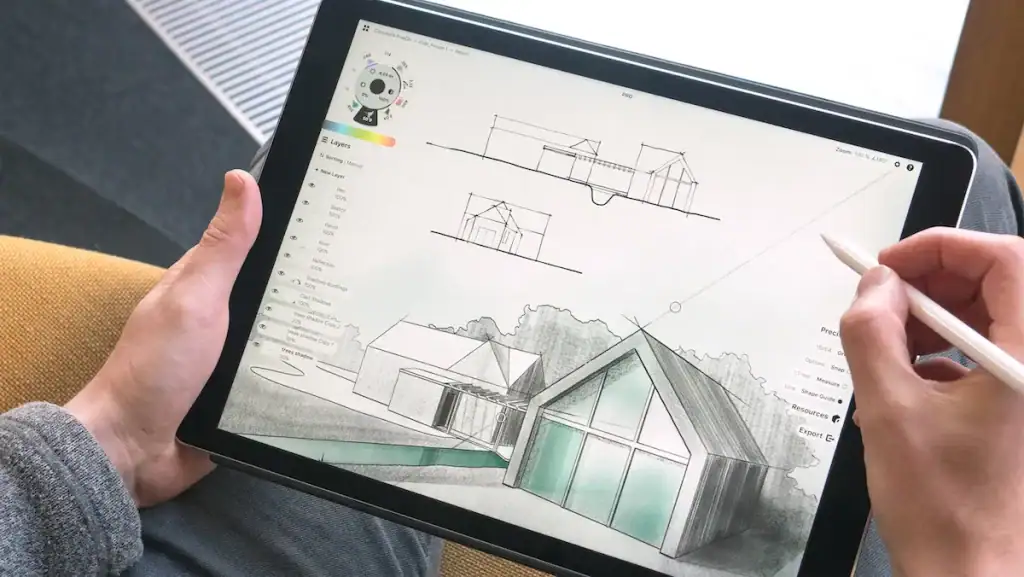
For precision work, technical illustration, or any project that might need resizing, Concepts delivers a vector drawing experience that feels as natural as sketching.
Key Features:
- Infinite canvas with flexible zooming
- Vector brushes that feel like natural media
- Precision tools for technical drawing
- Cross-platform support (iOS, Android, Windows)
- Customisable interface
What’s New in 2026:
This year’s significant addition is the AI-assisted drawing tools that can help straighten lines, perfect shapes, and suggest perspective corrections. These subtle assistants make technical drawing much more approachable for those without formal training.
Limitations:
The free version is limited, and the complete feature set requires a one-time purchase or a subscription. Some users find the infinite canvas disorienting at first.
Best For:
Architects, product designers, and technical illustrators. Anyone who needs precision but still wants a natural drawing feel.
5. Clip Studio Paint – Best for Comics and Manga
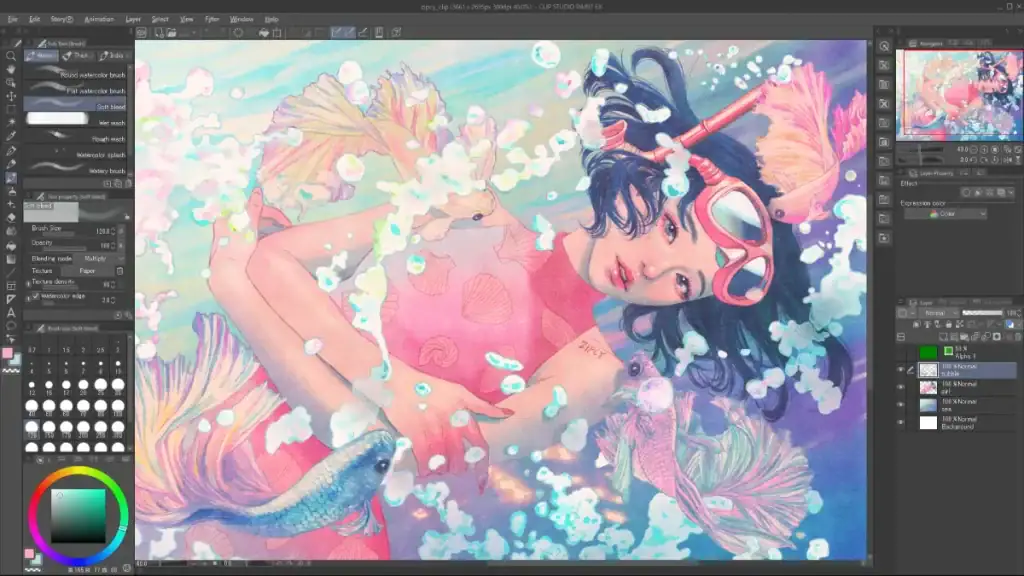
Clip Studio Paint has dominated the comic creation space for years, and recent updates have only widened the gap between it and its competitors.
Key Features:
- Specialised tools for comics and manga
- Extensive asset library, including tones, backgrounds, and effects
- Animation capabilities
- 3D model positioning for reference
- Advanced perspective rulers
What’s New in 2026:
The 2026 update introduced AI-assisted inking tools that help clean up rough sketches while maintaining your style. They’ve also expanded the collaborative features, making it easier for comic teams to work together.
Limitations:
The mobile subscription model remains unpopular, with different pricing for iPad/iPhone versus desktop versions. The interface feels dated compared to some newer apps.
Best For:
Comic artists, manga creators, and illustrators who work primarily in black-and-white or cell-shaded styles. The specialised comic tools are unmatched by any other app.
6. Sketchbook – Best for Natural Sketching
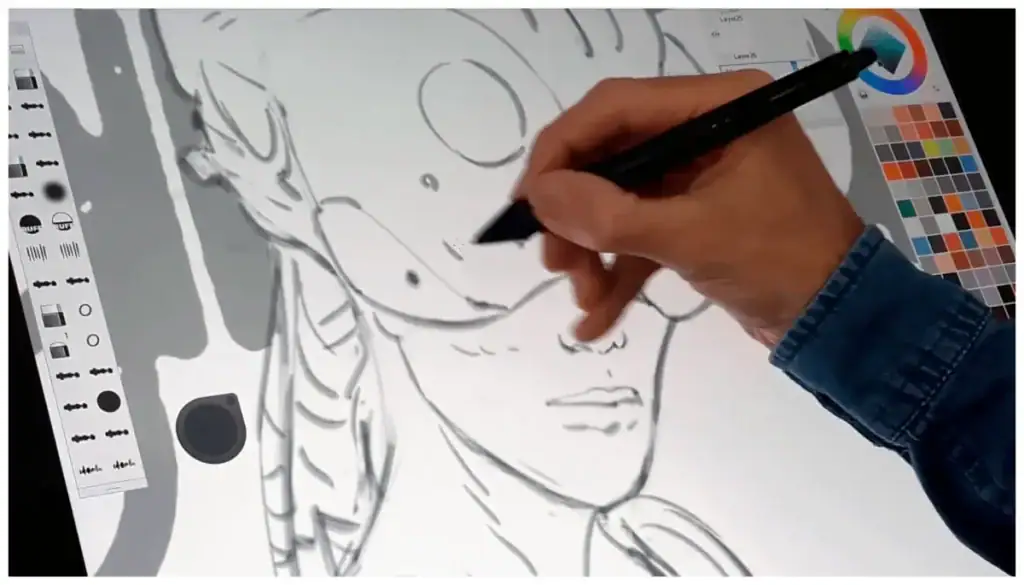
Sometimes, you want to sketch without distractions, and that’s where Sketchbook excels. It provides the most natural drawing experience with an interface that gets out of your way.
Key Features:
- Minimal, distraction-free interface
- Excellent pen and pencil simulation
- Predictive stroke for smoother lines
- Symmetry tools
- Basic animation features
What’s New in 2026:
After being acquired again in late 2024, Sketchbook has received substantial investment. The new brush engine provides the most realistic pencil experience I’ve found in any app, and the updated interface scales beautifully from phones to large tablets.
Limitations:
Limited layer functionality compared to more professional tools. Export options are basic.
Best For:
Urban sketchers, concept artists, and anyone who wants the most natural digital sketching experience. It’s also excellent for beginners due to its straightforward interface.
7. Affinity Designer 2 – Best Procreate Alternative for Non-iPad Users
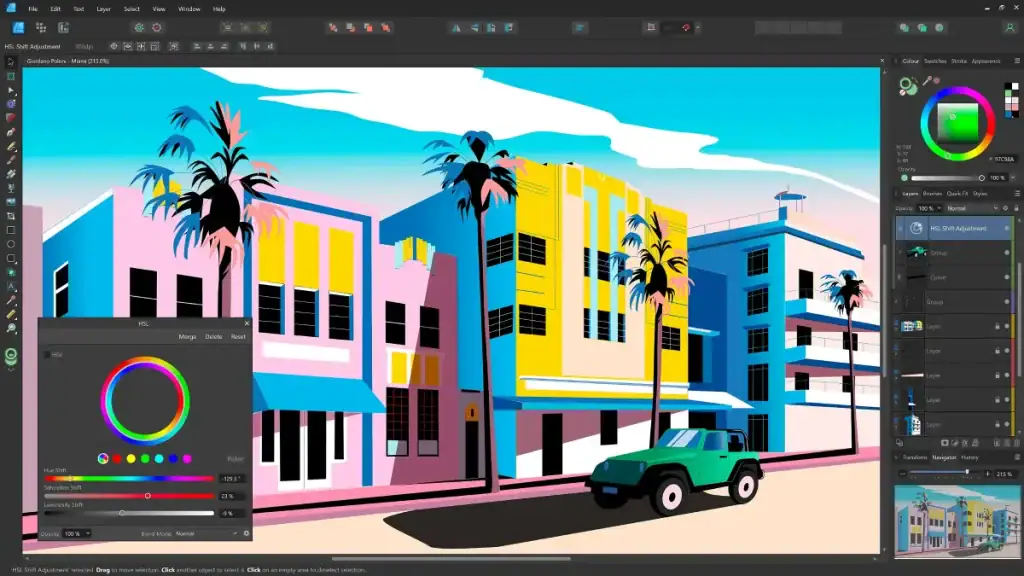
While Procreate remains iPad-only, Affinity Designer provides a compelling alternative for Windows, Mac, and Android tablet users.
Key Features:
- Combined vector and raster workspaces
- Professional typography tools
- Non-destructive adjustments
- Flexible export options
- One-time purchase model
What’s New in 2026:
The 2026 update finally brought the Android version up to par with its Apple counterparts. The new brush stabilisation features are excellent for those without a premium stylus.
Limitations:
It’s still not quite as intuitive as Procreate for pure illustration work. Some users report occasional performance issues with very complex files.
Best For:
Digital artists who work across multiple platforms or don’t use iPads. It’s powerful for those who mix graphic design with illustration work.
Affinity Designer has become my go-to for creating illustrations that will be used in branding projects. The ability to switch between vector and raster modes makes it incredibly versatile.
8. ArtRage – Best for Traditional Media Simulation
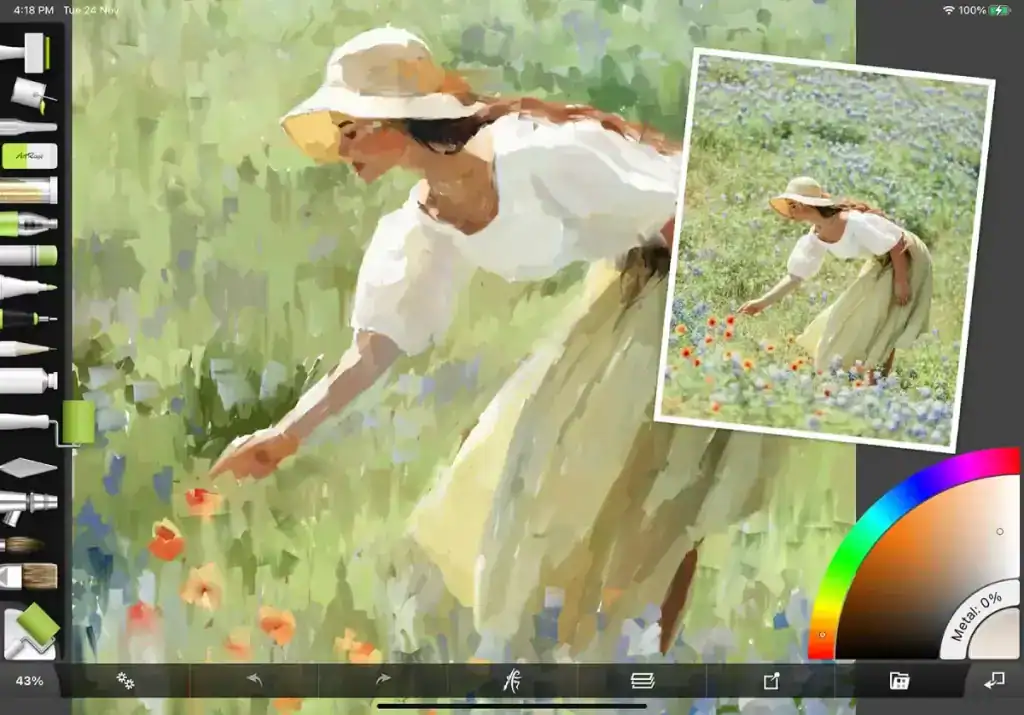
For artists transitioning from traditional media, ArtRage offers the most convincing digital replacements for physical tools.
Key Features:
- Hyper-realistic paint, pencil, and ink simulation
- Texture effects that mimic canvas and paper
- Colour mixing that behaves like real paint
- Reference image tools
- Affordable one-time purchase
What’s New in 2026:
The latest update introduced haptic feedback on supported devices, adding a tactile dimension to the drawing experience. They’ve also added new canvas textures that affect your strokes in extremely realistic ways.
Limitations:
It’s not ideal for clean, digital-style artwork. Performance can suffer on lower-end devices due to the complex media simulations.
Best For:
Traditional artists are moving to digital, painters, and those who want their digital art to retain a handmade aesthetic.
9. Infinite Painter – Best Drawing App for Android
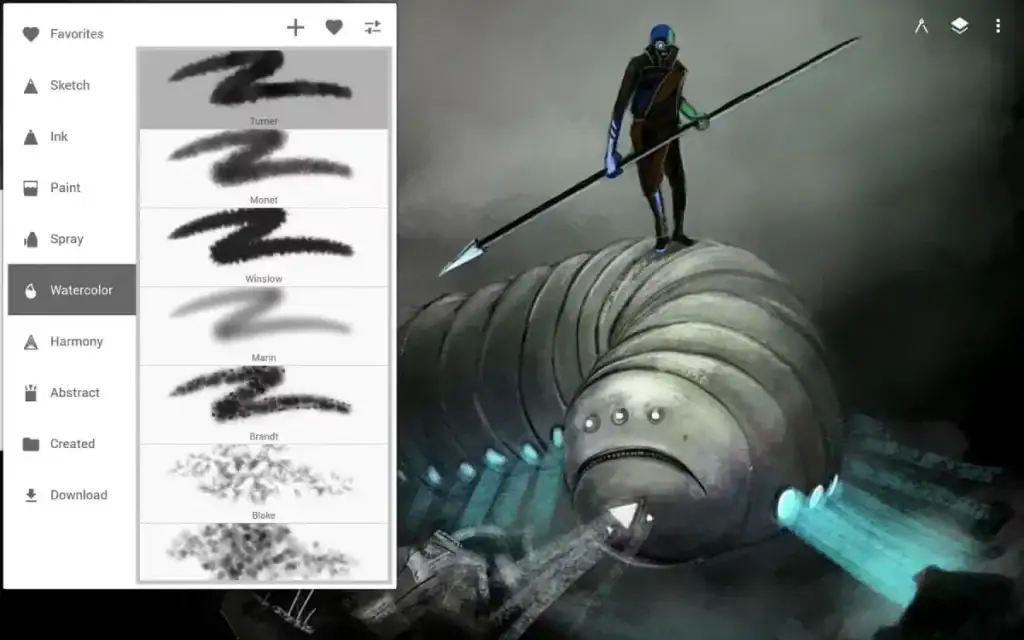
Android users often get the short end of the stick regarding creative apps. Still, Infinite Painter has emerged as a premium option specifically optimised for the Android ecosystem.
Key Features:
- Over 160 natural brushes
- Advanced layer capabilities
- Perspective guides and symmetry tools
- Realistic blending modes
- Extensive export options
What’s New in 2026:
The 2026 update brought significant performance optimisations, particularly for Samsung devices with S Pen support. The new cloud backup feature ensures you never lose work, even when switching devices.
Limitations:
No desktop version is available. Some advanced features are less intuitive than in competing apps.
Best For:
Android tablet users, particularly those with Samsung devices. It’s the closest thing to Procreate in the Android ecosystem.
10. Tayasui Sketches – Best Drawing App for Beginners
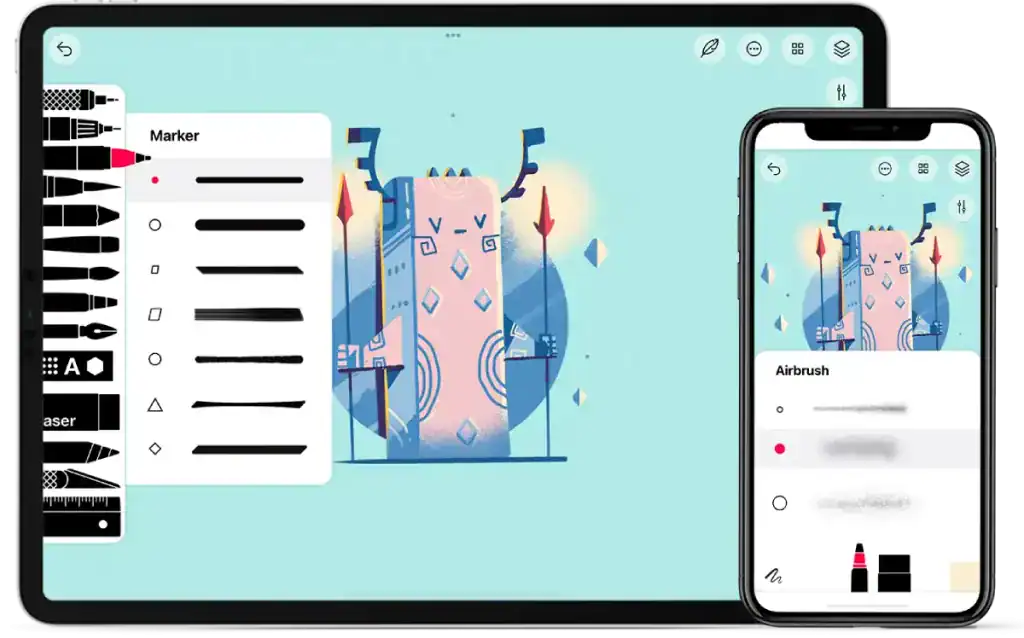
If you’re starting your digital art journey, Tayasui Sketches provides an accessible entry point without overwhelming you with options.
Key Features:
- Clean, intuitive interface
- Realistic brushes with simple customisation
- Basic layer support
- Pattern and texture tools
- Affordable pro upgrade from the free version
What’s New in 2026:
The latest version introduced guided tutorials that walk beginners through creating specific types of artwork. The brush preview feature is also excellent, showing exactly how each tool works before you commit to using it.
Limitations:
Limited layer functionality compared to professional options—fewer precision tools for detailed work.
Best For:
Complete beginners, casual sketchers, and those who value simplicity over extensive features.
Best Drawing Apps for Specific Needs
While our top 10 covers the best overall drawing apps, you might have specific requirements that call for specialised tools:
Best for Kids
Drawing Desk Kids: With a simplified interface, guided drawing activities, and parental controls, this app is perfect for young artists. The free version offers plenty of features to keep children engaged.
Best for 3D Integration
Nomad Sculpt: While primarily a sculpting app, Nomad’s drawing tools integrate beautifully with 3D models, making it ideal for concept artists who work across dimensions.
Best for Animation
Rough Animator: For those interested in bringing their drawings to life, Rough Animator offers the most intuitive frame-by-frame animation tools on mobile devices.
Best for Collaborative Work
Adobe Creative Cloud Canvas: This relatively new offering from Adobe provides excellent collaborative features, allowing multiple artists to work on the same project simultaneously.
Free vs Paid Drawing Apps: What’s Worth Your Money?
The eternal question: Do you need to pay for a drawing app? The answer depends entirely on your needs.
Free drawing apps like Krita offer remarkable capabilities that would have cost hundreds of pounds just a few years ago. For casual users or beginners, these free options provide more than enough functionality to create impressive artwork.
However, professional-grade apps like Procreate (at £12.99) offer refinements and efficiencies that can make a significant difference to working artists. Features like advanced brush engines, precision tools, and time-saving shortcuts can pay for themselves quickly if you’re creating art professionally.
Start with a quality free app like Krita or the basic version of Sketchbook. Once you’ve outgrown their capabilities or identified specific features you need, consider investing in a paid alternative.
Hardware Considerations: Getting the Most from Your Drawing App
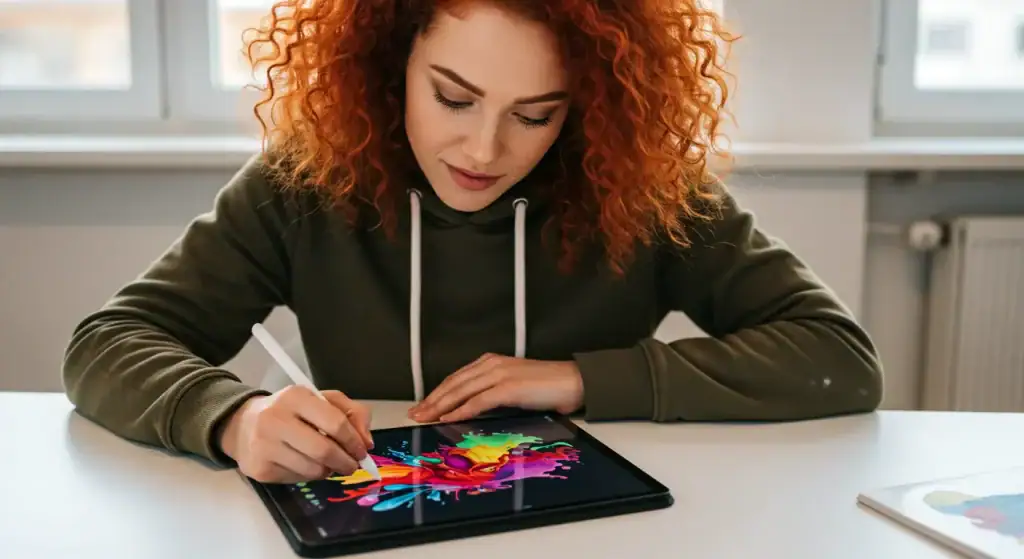
Even the best drawing app can be limited by inappropriate hardware. Here are some considerations:
Stylus Support
A pressure-sensitive stylus makes an enormous difference in drawing apps. While fingers work in a pinch, a stylus with palm rejection will significantly improve your experience. Options range from:
- Budget-friendly: Logitech Crayon (£65)
- Mid-range: Wacom One Pen (£45-60, device dependent)
- Premium: Apple Pencil 2/3 (£129) or Samsung S Pen Pro (£99)
Screen Size and Resolution
Larger screens provide more canvas space, while higher resolutions allow greater detail. If drawing is your primary activity, prioritise these factors when choosing a device.
Processing Power
Complex brushes and large canvases require significant processing power. Most flagships from 2023 onwards will handle drawing apps well. Still, budget devices may struggle with more demanding apps like Procreate or ArtRage.
The Future of Drawing Apps: What’s Coming Next?
The drawing app landscape continues to evolve rapidly. Based on current trends, here are some developments we expect to see over the next year:
- Enhanced AI Integration: We already see AI tools that can help clean up sketches or suggest colour palettes. Expect these to become more sophisticated and personalised to your style.
- VR/AR Drawing: As mixed-reality headsets become more common, expect drawing apps to expand into 3D space.
- Haptic Feedback: More sophisticated haptic systems will continue to develop, creating tactile sensations that mimic drawing on different surfaces.
- Cross-Platform Standardisation: The frustration of learning different interfaces for different devices is gradually being addressed, with more apps offering consistent experiences across platforms.
Getting Started: Tips for New Digital Artists
If you’re new to digital art, the transition can feel overwhelming. Here are some tips to ease your journey:
- Start Simple: Choose a straightforward app like Sketchbook or Tayasui Sketches before moving to more complex options.
- Practice Basics First: Master simple strokes and shapes before attempting complex illustrations.
- Use Layers: Even if you don’t use them in traditional art, layers are one of the most significant advantages of digital drawing.
- Watch Tutorials: Most popular apps have extensive tutorial communities on YouTube.
- Be Patient: There’s a learning curve when transitioning to digital, even for experienced traditional artists.
From Screen to Street: Professional Export Workflows
A common mistake for beginners is creating a masterpiece only to find it looks dull when printed or “pixelated” when resized. In 2026, the best apps handle these technical hurdles for you, but you need to know how to set them up.
Resolution and DPI: The Golden Rules
Always start your canvas at 300 DPI (dots per inch) for print. If you are working on a 10-inch print, your canvas should be at least 3000 pixels wide.
Using this formula ensures that your work remains crisp. Apps like Affinity Designer 2 allow you to work in “Physical Units,” which is a lifesaver for designers.
The CMYK Transition
Most drawing apps default to RGB (Red, Green, Blue), which is for screens. However, professional printing uses CMYK (Cyan, Magenta, Yellow, Key/Black).
- Adobe Fresco and Affinity Designer allow you to work natively in CMYK.
- Procreate lets you choose a CMYK profile (like FOGRA39) when creating a canvas, but be warned: some blending modes might look different from their RGB counterparts.
File Formats for 2026
- .PSD: The universal language. If you need to send files to a client, export them as layered PSDs.
- .TIFF: Best for high-end printing; preserves every detail without compression.
- .SVG: For logos and icons created in Concepts or Affinity, ensuring they can be scaled to the size of a billboard.
Frequently Asked Questions: Digital Drawing in 2026
Is 8GB of RAM enough for professional digital art?
For most hobbyists and illustrators, 8GB is sufficient. However, if you work on large canvases (e.g., A3 at 600 DPI) or use hundreds of layers in Procreate, you will hit “layer limits.” Professional artists should aim for 16GB or more to ensure a smooth workflow without the app constantly merging layers to save memory.
Can I use Photoshop brushes (.abr) in other drawing apps?
Yes! In 2026, compatibility is better than ever. Procreate, Adobe Fresco, Clip Studio Paint, and Infinite Painter all support importing .abr files. This allows you to use your favourite legacy brushes from the desktop on your mobile tablet.
Why does my stylus have “jitter” or lag when drawing slowly?
This is often a hardware limitation or a screen protector issue. If you use a tempered glass protector, it can interfere with the digitiser. Try a “paper-feel” film or adjust the stabilisation (sometimes called “Streamline” or “Smoothing”) settings in your app. Krita and Clip Studio Paint offer the most robust stabilisation controls.
What is the best drawing app for left-handed artists?
Most modern apps, including Procreate and ArtRage, allow you to mirror the interface. In Procreate, you can move the brush size and opacity slider to the right side of the screen in the settings menu, preventing your drawing hand from obscuring your tools.
How do I protect my digital art from being used for AI training?
Many artists now use tools like Glaze or Nightshade before posting online. Some 2026 apps are beginning to integrate “AI Opt-out” metadata into their export settings. Always check the terms of service for cloud-based apps like Adobe Fresco to understand how your data is used.
Final Thoughts: Choosing Your Digital Canvas
The best drawing app for you depends on your specific needs, device, and artistic goals. Consider trying free versions where available before committing to purchases.
Remember that the tool is just one part of the equation – consistent practice remains the most critical factor in developing digital art skills. Even the most basic drawing app can produce stunning results in skilled hands.
Whether you’re sketching casually or creating professional illustrations, there’s never been a better time to explore digital art. The barriers to entry are lower than ever, while the creative possibilities continue to expand.
So grab your stylus – your digital canvas awaits!
Drawn to try something new? These top 10 best drawing apps might sketch out your creative future.